If XM requests a replacement document and your account has a replacement option, correct the stated issue and submit it there. If you only see "Rejected", ask XM which item needs attention and whether resubmission is permitted. If XM has refused the entire application, ask which options apply before sending more files or starting another application.
Scope note: This guide concerns XM. The applicable country, legal entity, account type, device and app/browser version are unspecified, and the supplied images have no capture dates. Readers in Thailand and elsewhere should follow their own account notice and regional instructions. The supplied material does not establish current document requirements, review times or a guaranteed outcome. Same-profile resubmission depends on an available replacement option; receipt of a file does not establish approval.
Read the notice and identify the situation
Sign in through the official XM site or app you normally use. Read the latest account notice and any related email, then check your account's verification area. Menu names and replacement controls may differ. The supplied material does not confirm a current navigation path.
The following troubleshooting categories can help you decide what to do next. They are not verified definitions of XM's status labels.
- If a specific document was returned, identify the document, stated reason and requested correction. Check whether your account has a replacement option.
- If "Rejected" appears without an explanation, check related notices and ask XM which item failed and what action is available. The badge alone does not identify the document, reason or permission to retry.
- If a submission is pending review, keep its details and check later notices for a decision or request.
- If an upload failed or receipt is uncertain, record the error and confirm whether the file arrived before retrying.
- If the entire application was refused, ask XM which options apply before submitting more documents or starting another application.
Treat Figure 1 as an undated reference example. It does not establish current navigation or policy.
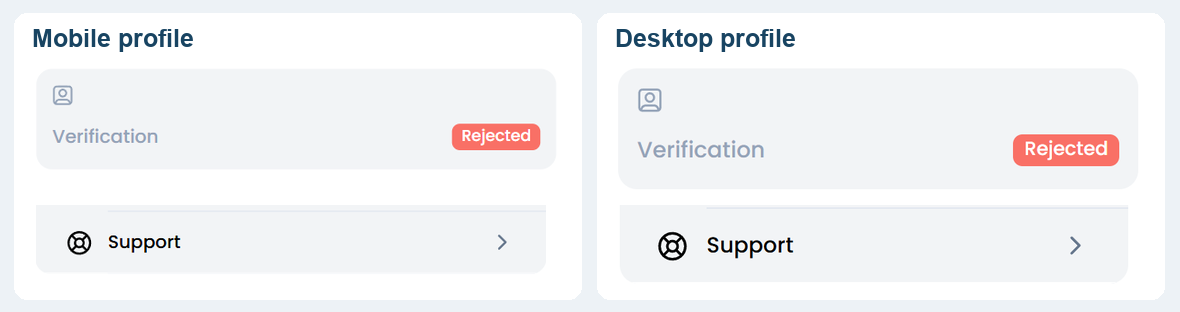
Figure 1. Undated reference screenshots described in the supplied material as showing Rejected and Support, with profile identifiers and unrelated panels cropped out. Contents and cropping have not been independently verified. These examples do not establish current navigation, policy or permission to resubmit.
Figure 1. According to the supplied description, these mobile and desktop profile crops each show a Rejected badge and a separate Support entry, with profile identifiers and unrelated panels cropped out. The images and cropping have not been independently verified; capture dates are unknown.
Correct the issue named in the request
Follow your account's instructions to determine what needs changing. The advice below concerns document clarity and accuracy. It is not a verified list of XM's document requirements.
- Identify the requested item and reason. If the notice names a specific problem, avoid replacing unrelated documents.
- Check the document type and validity conditions displayed for your account or confirmed by XM. The supplied evidence does not establish a universal accepted-document list or validity period.
- If XM requests a clearer copy, capture the original in even lighting. Avoid glare, keep all edges visible and check that the requested details are readable.
- Include additional sides or pages only when the submission instructions request them.
- Compare the requested details with your profile. If a name, birth date or address differs, ask XM how to resolve the mismatch. Keep identity documents unaltered.
If residence evidence is returned or your address has changed, follow your account's instructions. The supplied evidence does not establish accepted residence documents, document-age limits or a universal route for submitting an address change.
Figure 2 illustrates document-image clarity. It does not establish which documents XM accepts.
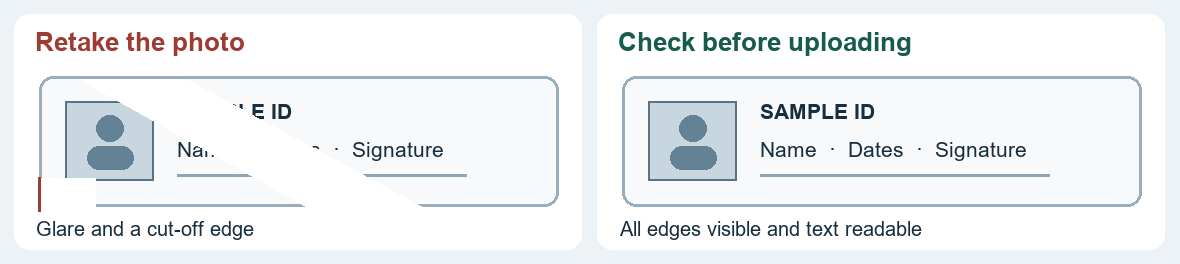
Figure 2. Fictional illustration comparing document-image clarity; it does not establish which documents XM accepts. The creator, production method and image date are unverified.
Figure 2. Fictional ID illustration comparing glare and a cut-off edge with a complete, readable document image. The creator, production method and capture date are unverified.
Resubmit only when replacement is available
To replace a document through the same profile, confirm that you have both an explicit replacement request and an available replacement control. If either is missing, ask XM whether resubmission is permitted and where to submit the file.
- Read the displayed requirements for document category, file format, size and pages.
- Select the requested replacement. Check any available preview for readability and completeness.
- Complete the on-screen submission and save any acknowledgement, reference or submission details.
- Check later notices for an explicit verification decision or further request.
An upload acknowledgement alone is not approval, and submitting a replacement does not guarantee successful verification.
Handle pending review and upload failures separately
When the submission is pending
Keep the submission details and check for later notices. If you need clarification, ask whether the submission is still awaiting review and whether you need to take any action. The supplied evidence does not establish a review deadline or retry interval.
When the upload fails
Record the exact error, when it occurred, and the device and app or browser version you used. Check for an acknowledgement or updated submission record. If receipt remains uncertain, ask XM whether the file arrived before uploading it again.
Follow any technical instructions displayed in your account, including supported devices, file limits and any retry interval. The supplied evidence does not verify these conditions. Do not assume that browser troubleshooting applies to a native app.
Ask support what to do next
XM's official support page directs readers to its Help Center and says its Customer Experience team can assist through various communication channels. Use the official route available for your region. The supplied snapshot does not establish particular channels, hours or response times.
Ask XM:
- Which document or item needs attention, and what correction is required?
- Is replacement enabled in this profile? If so, where should the file be submitted?
- Does the decision concern one document or the entire application?
- If receipt is uncertain, did the upload arrive, and is another submission needed?
Provide the relevant notice date, exact status, document category if known and any error details. Remove unrelated personal information from screenshots, and confirm a secure submission route before sharing identity documents.
Treat application refusal as a separate decision
The supplied description of Figure 3 concerns one undated notice stating that an application was refused and temporary access would be suspended. It also describes a fresh-application route for that case. The description has not been independently verified and does not establish another reader's eligibility or a general suspension policy.
Ask XM which options apply to your application before sending more files or beginning another application. Do not treat the instructions in this example as a general workaround.
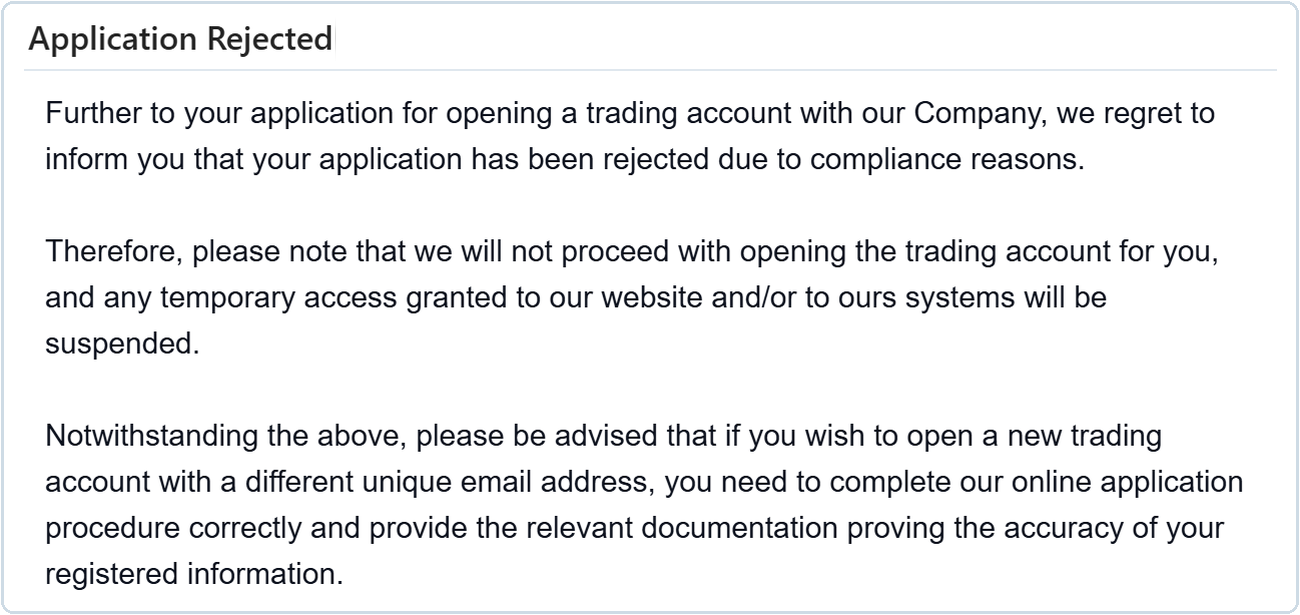
Figure 3. Undated reference screenshot described in the supplied material as an application-refusal email cropped to retain the decision and case-specific instructions while omitting identifying details. The notice and cropping have not been independently verified. This example does not establish general suspension or reapplication rules, or another applicant’s eligibility.
Figure 3. According to the supplied description, this undated application refusal notice is cropped to retain the decision and case-specific instructions while omitting identifying details. The notice and cropping have not been independently verified; the example does not establish general suspension or reapplication rules.




 XM

