Filter as you type, press Enter to open the first result6 results
Risk warning:CFDs and leveraged forex trading are high-risk products that can lose your entire capital very quickly, and are not suitable for every investor. Everything on this site is information only and is not investment advice, an offer or a recommendation. Check the rules that apply where you live and read the broker's full terms and risk disclosure before opening an account. Some links on this site are affiliate links that may earn us a commission; this does not affect our scores or rankings.
XM verification pending: What to check and when to contact support
Check the requests, submission details and exact status shown in your XM account. Keep a timeline and ask official support what remains unresolved without assuming an approval deadline.
Country, contracting entity, account type and currency are unspecified; applicability to Thailand is unconfirmed. Current verification requirements, review guidance and available contact routes are not established for a particular account. Device, app/interface version and screenshot capture dates are unknown. Demonstrations do not establish approval, processing speed or payment success.
What you will learn
A documented verification status and a clear next action or support request; approval and completion time cannot be promised.
If your XM verification is pending, check the exact wording in your account, any unfinished requirements and whether an explicit approval decision appears. An account number, welcome email or upload acknowledgement alone does not establish verification approval.
The reason for a pending status and the time needed to resolve it depend on the individual account. The checks below can help you document the issue and decide what to ask support.
Check unfinished profile steps and requests
Open your account through XM's official website or app. Review the steps and messages displayed for your account. Menu names and requirements may differ.
Complete the questions and steps requested, and answer truthfully. Do not copy a demonstration's answers. Check your registered details against the documents you have been asked to provide. If a detail is incorrect and cannot be edited, or you are unsure about a discrepancy, ask official support how to correct it.
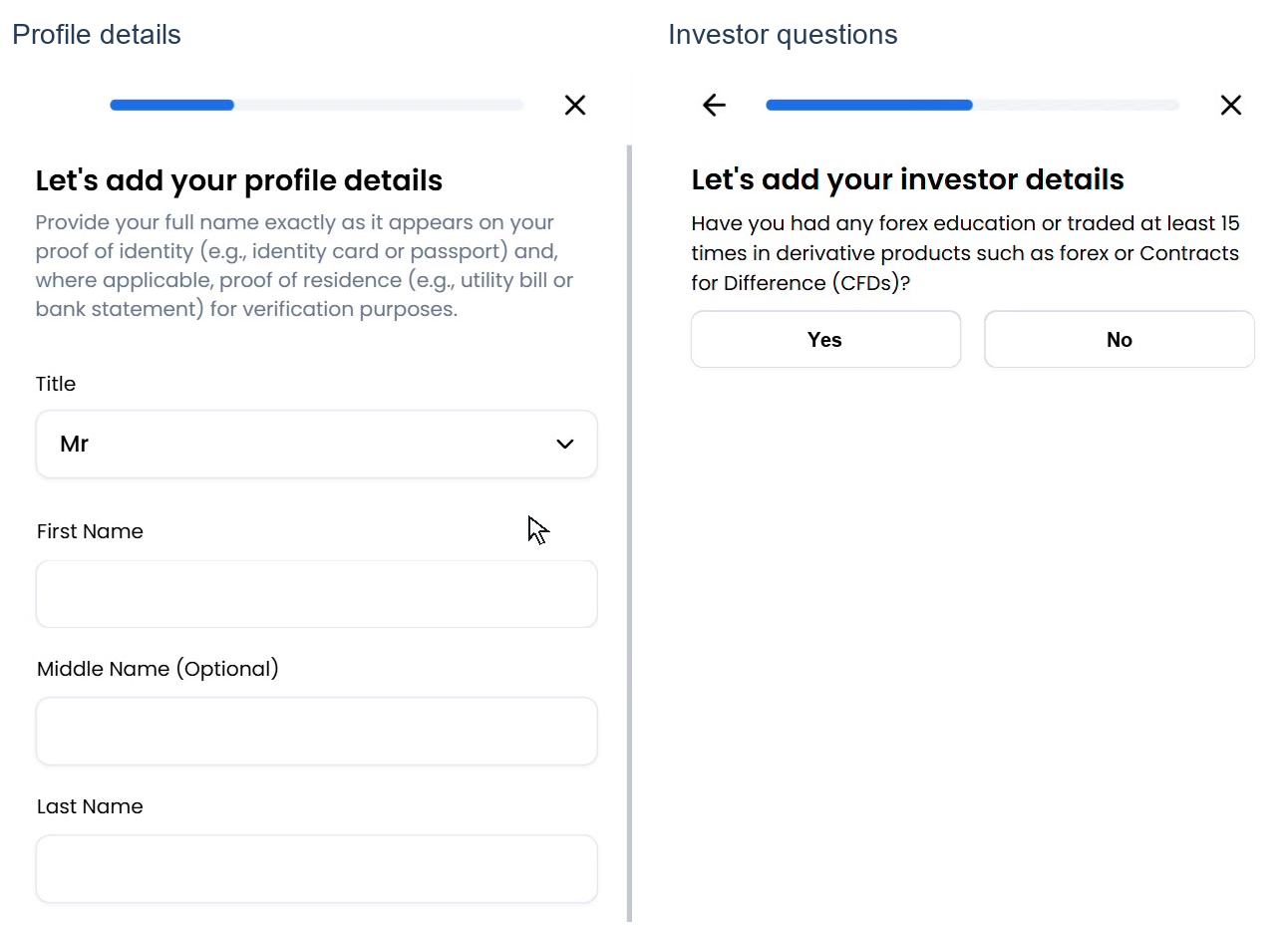
Figure 1. Supplied demonstration; capture date unknown. Profile details and investor questions appear as separate steps, without establishing a required sequence. The supplied description reports cropping only. Country, entity, account type, currency, device and interface version are unspecified; applicability to Thailand or your account is unconfirmed.
The supplied demonstration shows profile information and investor questions as separate steps. Its accompanying description says the image was cropped to remove unrelated space without changing the displayed fields or answers. The capture date and applicability to your account are unknown, and the example does not establish a required sequence.
Check document requests and upload problems
Start with the specific error or replacement request on your screen. Follow your current uploader's instructions for document category, validity or recency, file format, size and required sides or pages. Another account's document list or a tutorial's upload limits may not apply to you.
For an image or capture problem, try these checks:
Make the requested text and document edges readable.
Use suitable lighting and avoid blur, glare or obscured details.
Include the sides or pages requested by your uploader.
Complete a selfie or camera capture only if your account requests it. If capture fails, check camera permissions. Try another device only if the flow supports that option.
These are troubleshooting suggestions. They do not establish XM's acceptance rules or explain your particular delay.
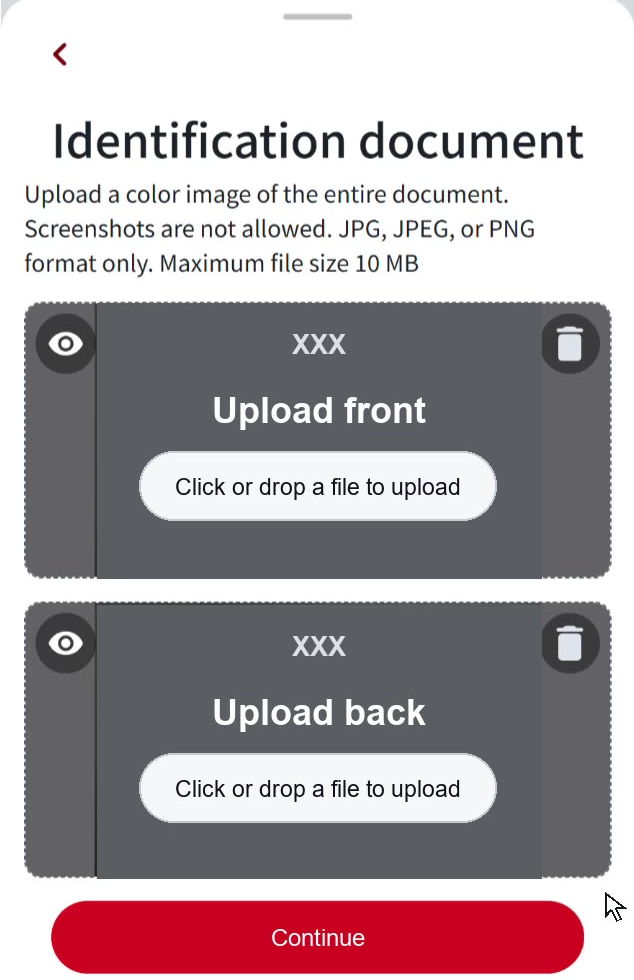
Figure 2. Supplied demonstration; capture date unknown. Its description lists JPG, JPEG or PNG, a 10 MB maximum and no screenshots. Follow your own uploader’s current requirements. The XXX previews are placeholders, not accepted identity documents; these example limits are not established for your account.
The supplied description of this demonstration uploader lists JPG, JPEG or PNG, a 10 MB maximum, front-and-back fields and a prohibition on screenshots. These details apply to the example; follow the requirements on your own screen. The XXX previews are placeholders and do not represent accepted identity documents.
Correct a clearly stated upload error or provide a requested replacement. If a file appears to have been received, check for a replacement request first. Ask for clarification before submitting duplicate files when the instructions are ambiguous.
Check submission, receipt and the decision separately
Do not assume what a status label means. Check each of the following:
Record the exact wording displayed in your profile.
Check for unfinished steps and requests for more information.
Look for an indication that submission or receipt is recorded.
Look for an explicit approval decision.
Ask support to clarify conflicting or ambiguous messages.
Where submission details are available, record the document category, displayed time and status. Let a loading panel finish before deciding that a file is absent. If receipt remains unclear, ask support to confirm it.
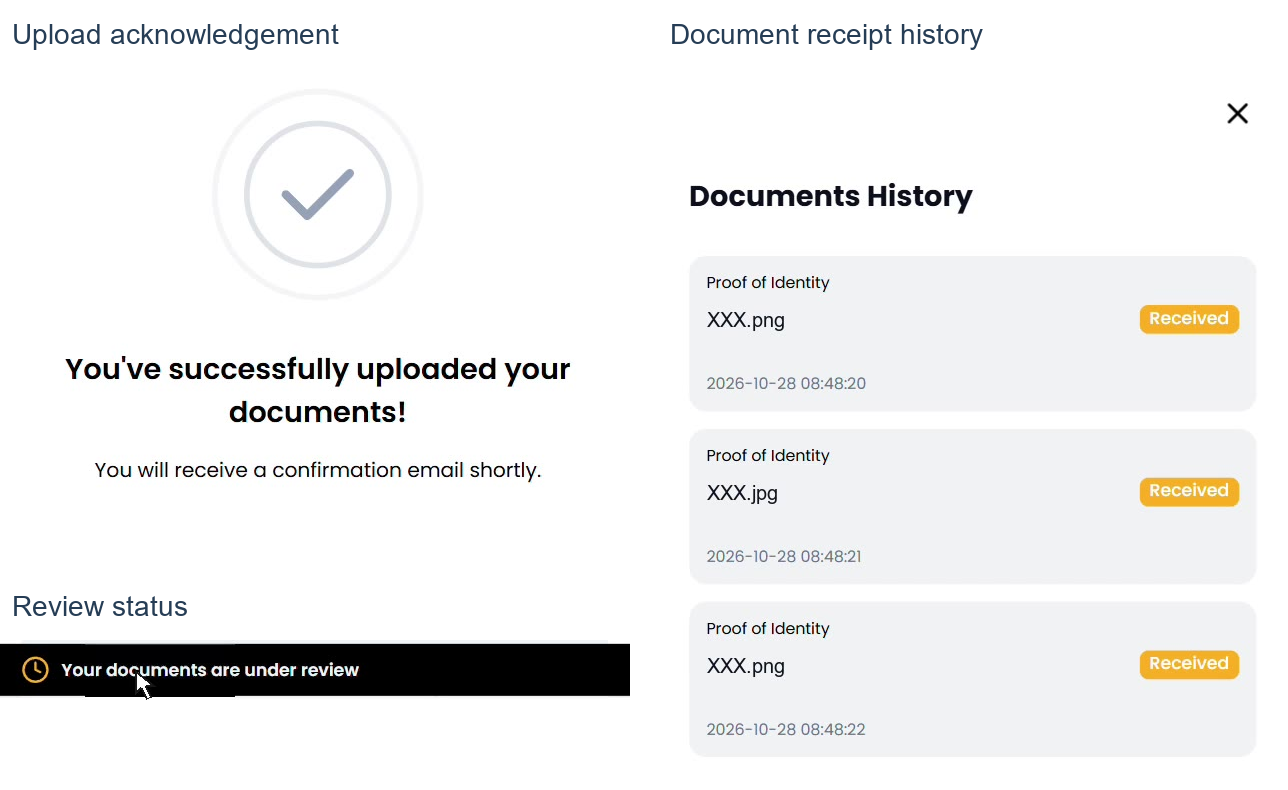
Figure 3. Supplied demonstration panels; capture dates unknown. Their descriptions include upload acknowledgement, an under-review banner and entries labelled “Received”; confirm what that label means for your account. These examples do not establish approval, processing speed, human review or payment success, and are not a measured before-and-after test.
The supplied demonstration descriptions include an upload acknowledgement, an under-review banner and a document history with entries labelled "Received". Confirm what that label means for your account. These examples do not show approval or establish a measured before-and-after verification result.
Build a timeline and check review guidance
Keep a short record of:
Your latest completed submission date, time and timezone.
Any displayed submission or receipt indication.
Later requests for information or replacement documents.
What you submitted in response, and when.
Any review guidance provided for your account or support case.
Do not measure the delay solely from registration. Recording a replacement upload also does not establish that an official review clock has restarted.
Use the review guidance displayed for your account or provided through official support. Clarify when the stated period begins and whether it uses calendar time or business days. If no applicable guidance is available, ask support what applies to your case. No universal verification deadline is established here.
If no action is requested and the review period given for your case has not elapsed, continue checking your account and registered inbox, including spam. Review any new request and record your response or replacement submission.
When to contact official support
These are practical reasons to seek help, not an official escalation policy:
A required upload, field or camera step cannot be completed.
You cannot confirm that a submission was received.
A rejection or replacement request does not explain what to correct.
Your profile, email or support messages give conflicting information.
You have lost access to an email address or phone needed to continue.
The review period given for your case has elapsed without an update.
XM's official support page directs users to its Help Center and offers further assistance through its Customer Experience team. Use the contact options available for your account. The supplied page does not establish particular channels, hours or verification turnaround times.
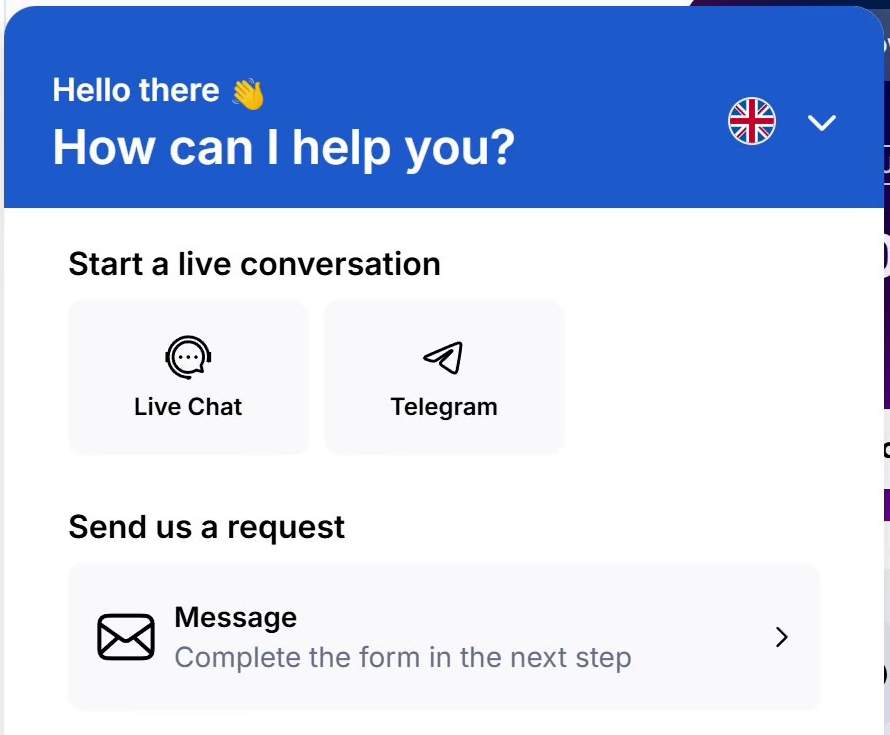
Figure 4. Historical support-widget example; capture date unknown. The supplied description identifies Live Chat and Message as separate contact routes. Current availability may differ by account. Use the official contact options available to you; opening a chat does not establish that a human has reviewed your documents.
The supplied support-widget example shows Live Chat and Message as different contact routes. It is a historical illustration, and current availability may differ. Opening a chat does not establish that a human has reviewed your documents.
If a reply leaves the issue unresolved, ask for clarification or escalation through an available official route. Keep any case reference. Contacting support does not guarantee approval or a faster decision.
A support-request template
You can adapt this format. It is not an official mandatory form.
Subject: Verification pending: Please confirm the next action
My account displays [exact status]. My country and contracting company are [details, if known].
I completed [requested step or document category] on [date, time and timezone]. The screen shows [receipt wording or error].
Subsequent requests or replacement uploads were [details and dates]. My existing case reference is [reference, if any].
Please confirm which requirement remains outstanding, whether my submission was received, what I should do next and which review guidance applies. Please clarify when that guidance starts and whether it uses calendar time or business days.
Protect information in troubleshooting screenshots
Share only relevant screenshots through the official support route. Mask unrelated account numbers, balances and third-party details, and retain an unaltered private copy.
Identity documents submitted through the official verification process have different requirements from troubleshooting screenshots. Do not obscure required identity information in those documents unless instructed.
Do not send passwords, one-time codes or full identity documents to unsolicited social-media accounts. Verify unexpected requests by independently opening an official website, app or support route.
If a withdrawal is also pending
Keep the withdrawal enquiry separate from the verification enquiry. Record its reference, request date, method and displayed payment status. Ask support whether verification remains an outstanding requirement. A payment delay alone does not establish that it is.
Verification approval alone does not establish that a withdrawal has been processed or credited by a bank. No account-specific payment availability, fees or settlement time are established here.
Limits of the examples
Country, contracting entity, account type and currency are unspecified, and applicability to Thailand is unconfirmed. Check current verification requirements, review guidance and contact options for your particular account. The device, app or interface version and screenshot capture dates are unknown.
The supplied demonstrations do not establish an individual customer's approval, processing speed, human document review or payment success. Follow your own account's instructions when using these examples.
This administrative guide provides no trading recommendation. Forex and CFD trading involve significant risk to invested capital, as stated in the supplied XM Global terms. That source does not establish that XM Global is your contracting company.



 XM