


 XM


On this page
- Applies to
- This guide covers individual document preparation. The reader's country, serving legal entity, account type, verification provider, device and interface version are unspecified. The supplied official material includes XM Global Limited policy and does not establish identical requirements or availability worldwide, including Thailand. Follow the requirements shown for your account. Browser, operating-system and app-version requirements are also unknown.
- Before you start
- Access to your account's current verification instructions to identify the requested evidence and applicable document and upload requirements.
- What you will learn
- A checklist for preparing requested evidence, submitting it through the official account route and checking for outstanding tasks or explicit completion. Acceptance is not guaranteed.
Start with the verification instructions in your own XM account. Check which evidence you need before preparing files, then review the result after submission. An upload confirmation alone does not establish that verification is complete.
Check your account's requirements
XM's legal-documents page says documents applicable to an account will be marked during registration. Follow the current instructions in your account when preparing evidence.
XM Global Limited's money-laundering prevention policy reserves the right to collect and verify identification before account opening and payments of proceeds. It refers readers to its account-opening forms for identification requirements. This policy applies to XM Global Limited and does not establish a single document checklist for every XM-related account.
Before taking photographs or downloading documents, check the following:
| Evidence | What to check in your account |
|---|---|
| Requested identity document | Accepted document type, validity requirements and details that must be visible |
| Residence evidence, if requested | Accepted document types, whose name and address must appear, document-age limits and file requirements |
| Live selfie or face capture, if requested | Camera requirements and the positioning, lighting or movement instructions displayed |
Identify the legal entity serving your account from its legal documents. If a public page appears to conflict with your account's request, ask official support which instructions apply.
The reader's country, serving entity, account type, verification provider and device are unspecified. Browser, operating-system, app and interface versions are also unknown. The supplied official material does not establish identical requirements or availability worldwide, including Thailand.
Check your personal details
Compare your account information with the genuine document details requested by the verification screen. Look for missing names, spelling differences, different transliterations, a changed surname or an old residential address.
If details differ, ask official support how to correct the account or explain the discrepancy. This includes legal name changes and address changes. Do not alter genuine document contents to make them match your profile.
The four figures in this guide are supplied walkthrough illustrations. Their capture dates are unknown, and their historical accuracy and applicability to your account have not been independently verified. Follow your current account instructions when carrying out the illustrated tasks.
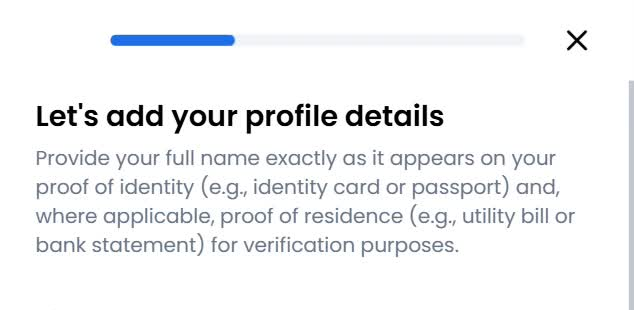
Figure 1. Supplied walkthrough screenshot at 00:13, cropped to the name-matching instruction. Capture date unknown; historical accuracy and applicability to your account are unverified. The prompt does not identify the company serving every reader. Follow your account’s current instructions.
Figure 1. Supplied walkthrough, 00:13, cropped to the name-matching instruction. The prompt does not identify the company serving every reader.
Prepare clear, complete files
Prepare readable evidence showing the document area and details your account requests. Before uploading:
- Check for blur, glare or shadows that hide printed information.
- Make sure required details, issuer information and dates have not been cropped out.
- Open the saved file and check that the relevant text is readable.
- Follow the current instructions on colour, front and back images, screenshots, file formats and file size.
- Provide each side or page requested by the upload screen.
Formats and size limits shown in a walkthrough do not establish current requirements for your account. Check the live limits for each upload field. Renaming a file extension does not convert the file into another format.
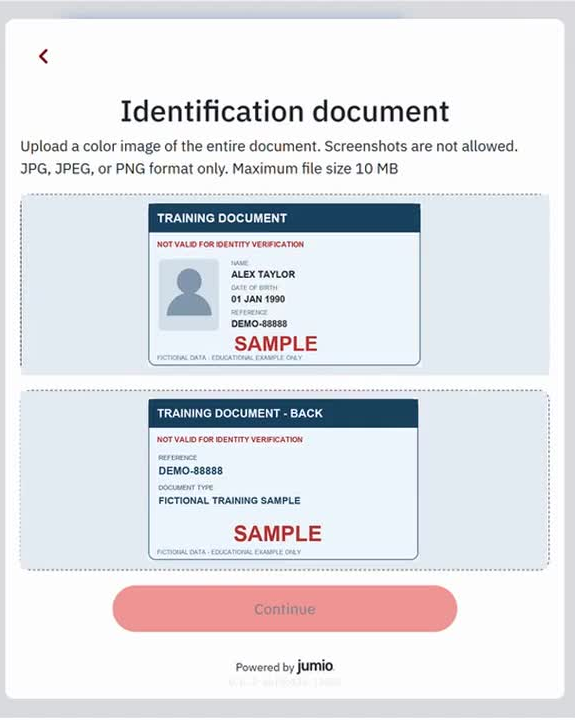
Figure 2. Supplied desktop walkthrough screenshot at 01:24. The front and back previews bear “SAMPLE” and “NOT VALID FOR IDENTITY VERIFICATION”; they illustrate separate upload fields, not acceptable identity evidence. No real approval is demonstrated. Capture date unknown; historical accuracy and account applicability are unverified. Check your account’s current upload requirements.
Figure 2. Supplied desktop walkthrough, 01:24. The front and back previews are labelled "SAMPLE" and "NOT VALID FOR IDENTITY VERIFICATION." They illustrate separate upload fields and are not acceptable identity evidence. No real approval is demonstrated.
Use your genuine documents and leave their contents unchanged. The fictional previews in Figure 2 are teaching examples.
Check residence evidence separately, if requested
A document accepted for identity verification may not qualify as residence evidence. If your account requests residence evidence, check which document types qualify and what information they must show.
For example, ask whether a bank statement or utility bill is acceptable, whose name and address must appear, which issuer details are required and how recent the document must be. A balance screen without the requested name or address may be missing required information.
Consider a fictional example: Alex Taylor's account is in Alex's name, but a household bill names someone else. The bill does not by itself show Alex's name at that address. Alex should ask support what evidence is acceptable for the account, without assuming the bill qualifies or editing its contents.
If the requested evidence is unavailable, ask whether a bank letter, government residence document, contract, another identity document, translated document or household-member document could meet the request. Acceptance of these alternatives is unconfirmed; discuss them with support before submitting.
Submit through the official account route
Open the current verification instructions through your official account route. Follow the fields and tasks displayed there. Do not assume a fixed menu path, stage sequence, verification provider or device option.
Before submitting, check that each requested field contains the intended file and that no required page or side is missing. Entering an address in your profile does not by itself establish that residence evidence has been verified.
Complete live capture only if requested
If your account requests a live selfie or face scan, follow its camera, lighting, positioning and movement instructions. A saved identity photograph does not demonstrate completion of a requested live capture.
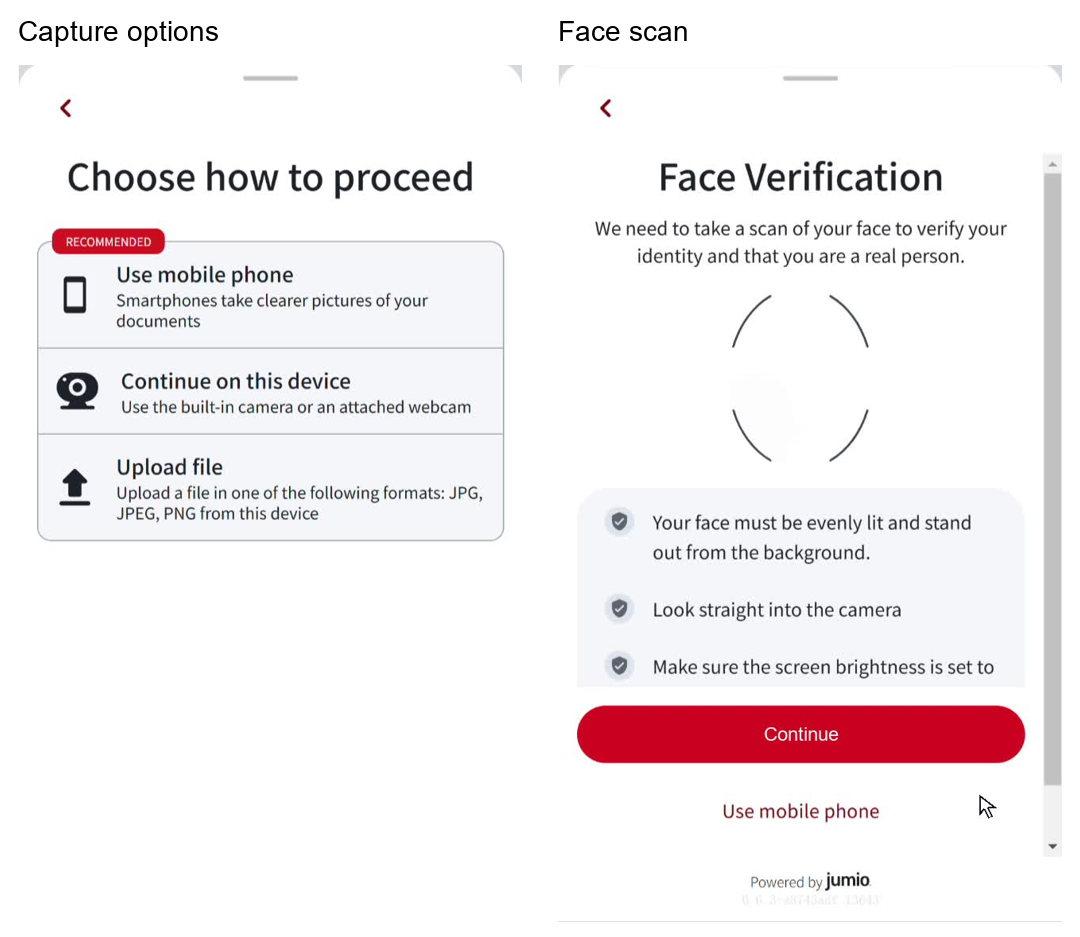
Figure 3. Supplied mobile walkthrough screenshots at 00:43 and 00:54, cropped and placed side by side. They show capture options and face-scan preparation, not a real identity passing verification. Capture dates unknown; historical accuracy and account applicability are unverified. Complete live capture only if your account requests it.
Figure 3. Supplied mobile walkthrough, 00:43 and 00:54, cropped and placed side by side. The panels show capture options and face-scan preparation. They do not demonstrate that a real identity passed verification.
Submit sensitive files through the official account route and keep them out of public comments. If you need help finding the correct submission route, contact support through the official site or app.
Check the result after submission
Return to your account's verification area after submitting. Look for outstanding requests and an explicit notice that verification is complete.
An upload confirmation, document preview, receipt message or email-confirmation action does not establish that identity or address verification has finished. If the result is unclear, ask official support what remains outstanding.
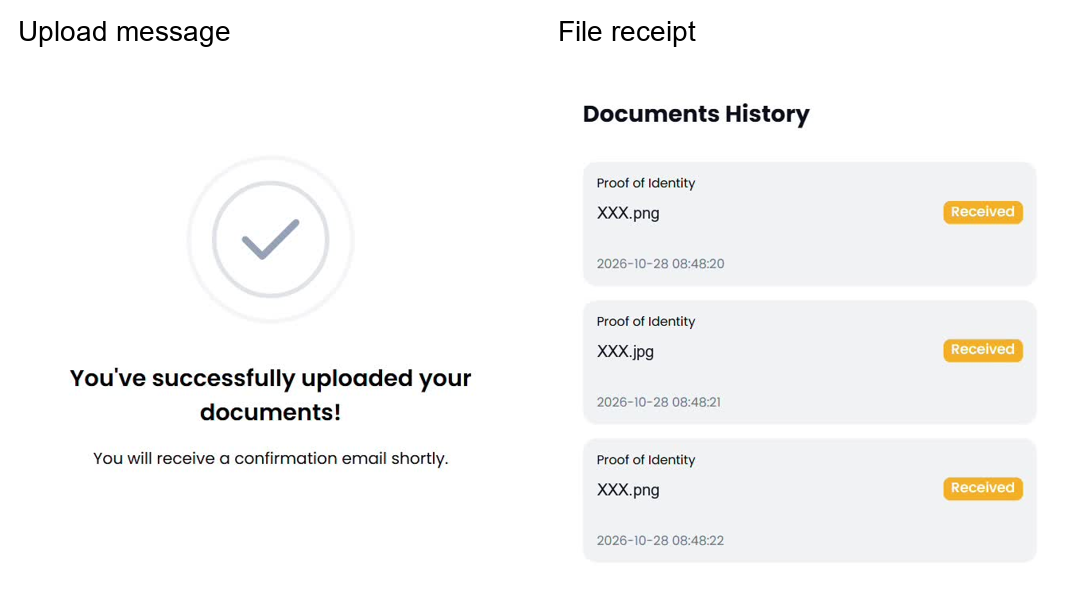
Figure 4. Supplied walkthrough screenshots showing an upload message at 00:59 and document history at 00:07. These are submission and receipt states, not approval notices. Capture dates unknown; historical accuracy and account applicability are unverified. Check your account for outstanding tasks or an explicit verification-completion notice.
Figure 4. Supplied walkthroughs, upload message at 00:59 and document history at 00:07. The captures show submission and receipt states; neither is an approval notice.
No review deadline is established by the supplied information. Check the current instructions and respond to any further request shown for your account.
Troubleshoot the specific problem
| Problem | Practical next step |
|---|---|
| Text is unreadable or required details are missing | Prepare a clearer, complete copy of the genuine document and check it before resubmitting. |
| A file will not upload | Compare its actual format and size with the live limits. Follow any displayed camera or browser guidance. |
| Account details differ from the documents | Ask support how to resolve spelling, transliteration, legal-name or address differences. Keep genuine document contents unchanged. |
| You cannot provide the requested document | Describe the evidence you have, including its issuer, date, name and address, and ask what is acceptable for your account. |
| A document needs translation | Ask whether a translation is required and what form it must take before arranging one. |
| Submission status is unclear | Ask whether verification is complete and whether any document or capture task remains outstanding. |
| An additional account requests documents | Respond to the current request or ask support which process applies. Do not assume a previous verification removes the request. |
XM's support page directs readers to its Help Center and Customer Experience team for assistance. You can ask:
Which documents can I use for this request, what name and address details must they show, what document-age and file-format limits apply, and is anything still outstanding?
Final preparation checklist
Before considering the task finished, check that you have:
- Identified the evidence requested for your account.
- Checked the required personal details, document validity and any document-age limits.
- Prepared readable files that meet the live upload specifications.
- Completed any requested live capture.
- Checked for outstanding tasks or an explicit completion notice.
These checks help you prepare and follow up, but do not guarantee acceptance. The supplied illustrations demonstrate no real identity approval, trading or withdrawals.