To check your XM leverage, identify the company that holds your account, select the correct trading account and check the instrument you plan to trade. XM's public leverage page advertises adjustable leverage up to 1000:1. Check your eligibility, available settings and instrument margin requirements separately.
Establish which limit applies to your account
Start with the legal company named in your client agreement. XM's legal documents page says documentation applicable to your account is marked during registration. Check those documents alongside your account type and client classification.
If the advertised limit differs from your account terms or displayed setting, ask XM which limit applies. A country-specific maximum, equity tiers for funded accounts and a universal list of available ratios remain unconfirmed. Eligibility for Thailand is also unconfirmed.
Before considering a change, make sure you can access the correct account, its applicable terms and the exact instrument specifications. Record current equity, used margin and free margin, especially if positions are open.
The MetaTrader 5 trading-report documentation defines balance as excluding the results of currently open positions, while equity includes them. Margin is the funds required to maintain open positions; free margin is reported separately. Balance alone cannot tell you the same things as equity or margin.
Check instrument margin before changing leverage
An account's leverage setting is one factor in its margin requirements. For accounts covered by XM Global Limited's disclosure, section 4.1 identifies the underlying instrument, chosen leverage and position value as margin factors. This disclosure applies to XM Global Limited; do not assume it governs every XM entity.
Check the exact symbol in your trading terminal:
Calculation modes, fixed-margin rules, additional margin rates and currency conversion can affect the required amount. An initial-margin value does not universally remove leverage from the calculation. The platform documentation describes these capabilities without confirming how XM has configured your particular symbol.
A hypothetical EUR margin example
Where the documented basic Forex calculation applies:
Margin = volume in lots × contract size per lot ÷ leverage denominator
For a hypothetical EUR 100,000 position, assuming EUR is the margin currency and no additional adjustment applies:
| Leverage | Calculation | Basic margin |
|---|
| 1000:1 | EUR 100,000 ÷ 1000 | EUR 100 |
| 500:1 | EUR 100,000 ÷ 500 | EUR 200 |
Under these assumptions, halving leverage doubles basic margin while the position size remains EUR 100,000. This follows the documented Forex calculation. It is not a verified XM symbol requirement, a universal CFD formula or evidence of how a leverage change affects existing positions. The example includes no currency conversion.
Compare estimates with your account
XM's All-in-One Calculator has inputs for account base currency, instrument, leverage, account type and volume in lots, plus a Required Margin result field.
Enter values that match the intended account and trade, then compare the estimate with the exact account and symbol in the terminal. Agreement between the calculator and a live terminal has not been verified: no calculator result or terminal comparison was supplied.
Check or change leverage in six steps
The four screenshots show a Micro account labelled Real, an Ultra Low Standard Demo account and Ultra Low Micro screens. Use each to locate the relevant control and follow the options in your own account.
Step 1: Sign in and select the account
Use the official XM route applicable to your account. Select the intended trading account and confirm its Real or Demo status before inspecting or changing anything. No particular login route or authentication method has been verified.
Step 2: Inspect the displayed setting
Find the selected account's management area, if available, and record its current leverage. Check the account type and Real or Demo label at the same time.
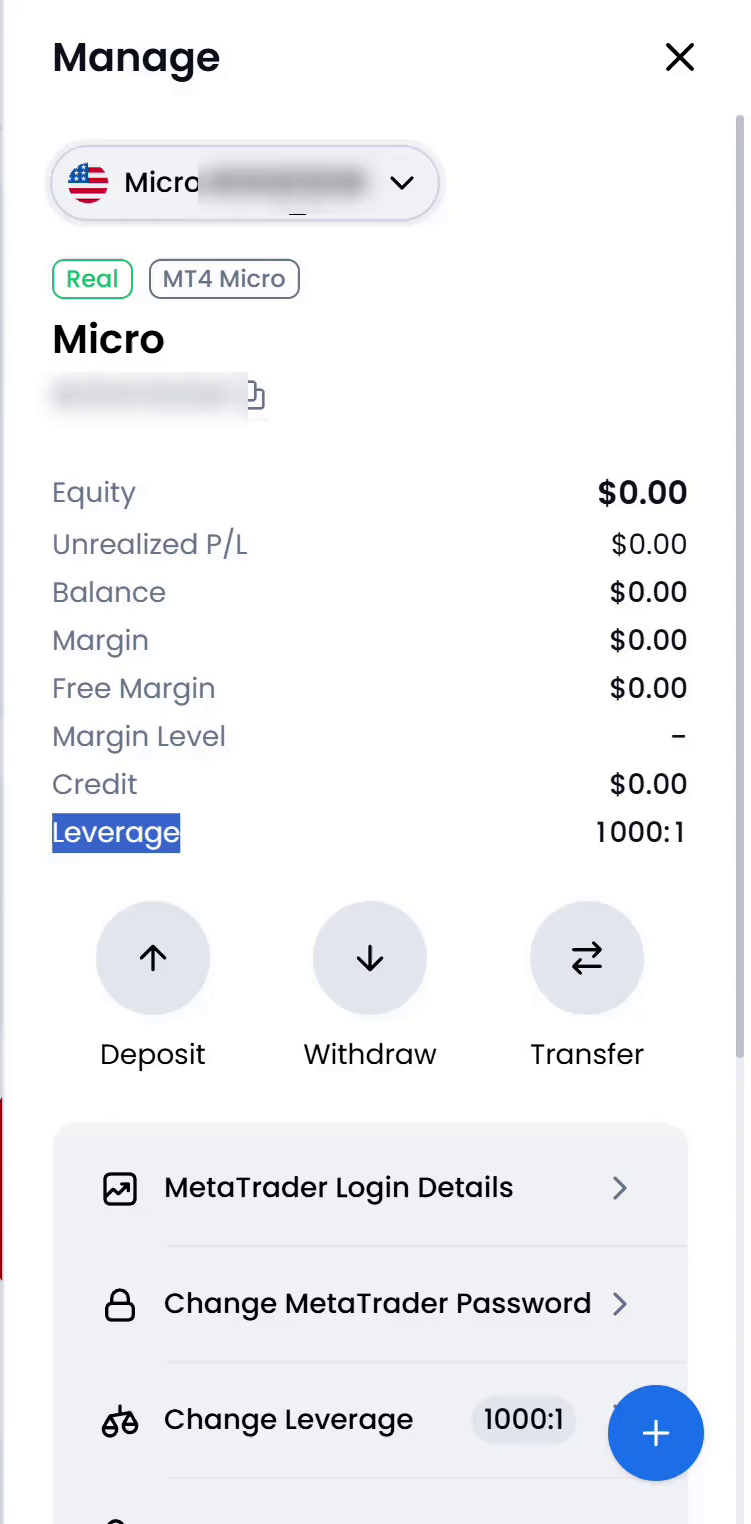
Figure 1. Manage panel for a Micro account labelled Real. It shows zero equity, leverage of 1000:1 and a Change Leverage option. Check the settings offered for your own account.
Step 3: Open the change option if present
Look for Change Leverage on the selected account. If available, open it and inspect the choices offered for that account. The current label and availability remain unconfirmed.
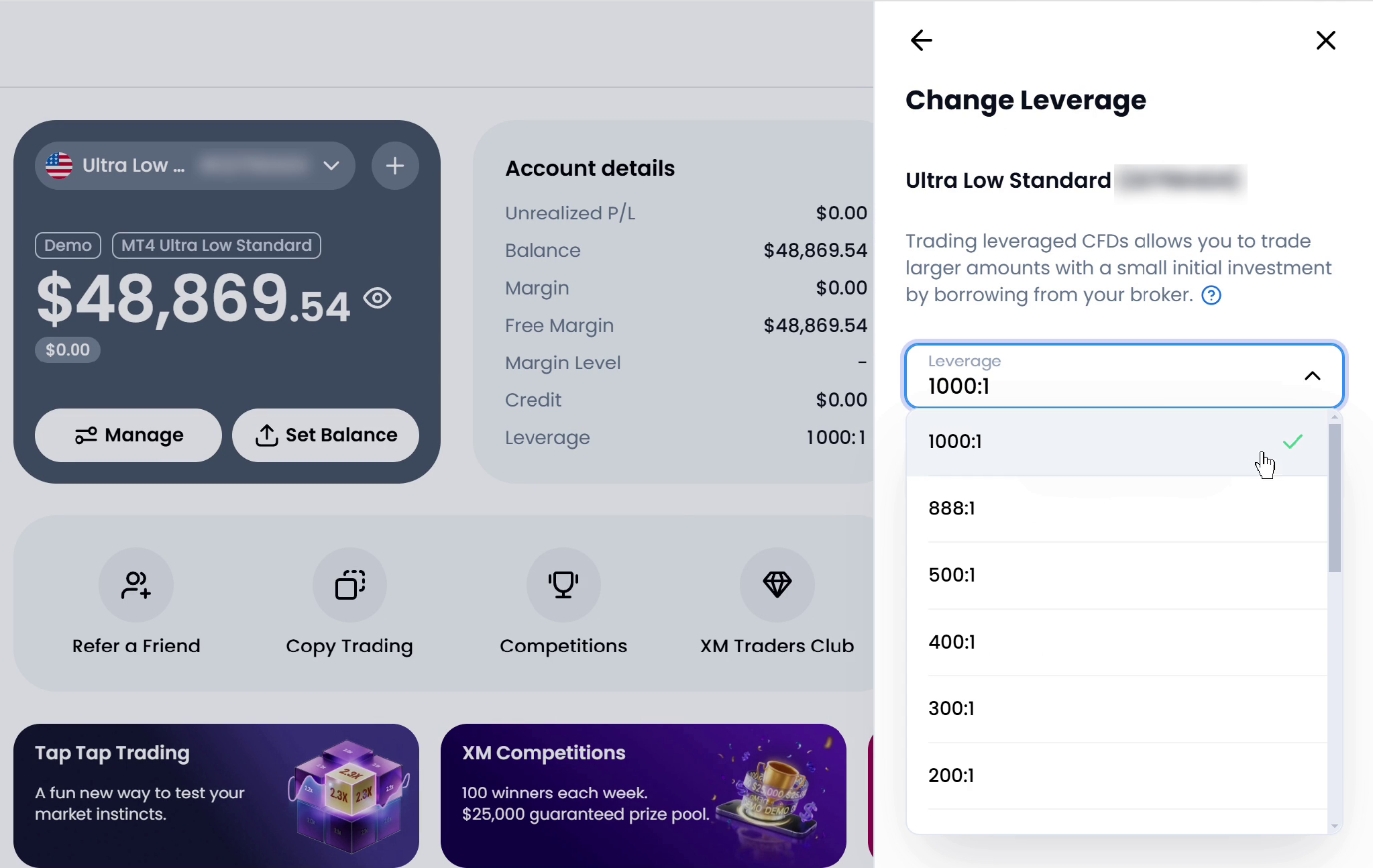
Figure 2. Ultra Low Standard Demo account with the leverage menu open and 1000:1 selected. Check your live account for its available ratios.
Step 4: Select and review a proposed setting
Choose a proposed ratio from the options offered. Before submitting, review the selection against your applicable terms and the instrument-margin assessment above.
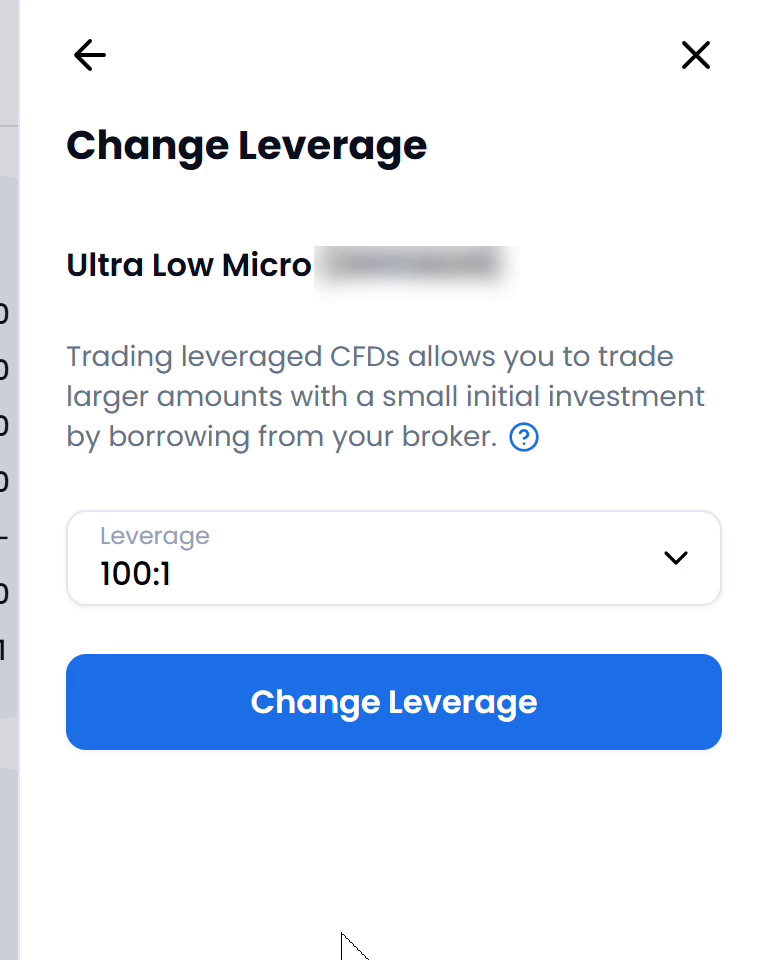
Figure 3. The Ultra Low Micro form shows 100:1 selected before submission.
Step 5: Resolve open-position questions and submit
Confirm the selected account and proposed value. If positions are open, check how the applicable rules treat those positions, used margin and free margin before assuming how a change will affect them. Ask XM for clarification if the account documentation does not answer these questions.
For accounts covered by XM Global Limited's disclosure, section 4.3 warns that insufficient equity to maintain positions can lead to liquidation at a loss. Do not assume another XM entity uses the same rules or numerical thresholds.
Once you have resolved these questions and decide to proceed, submit through the available control.
Check any confirmation and recheck the displayed leverage. Separately inspect terminal equity, used margin and free margin for the same trading account.
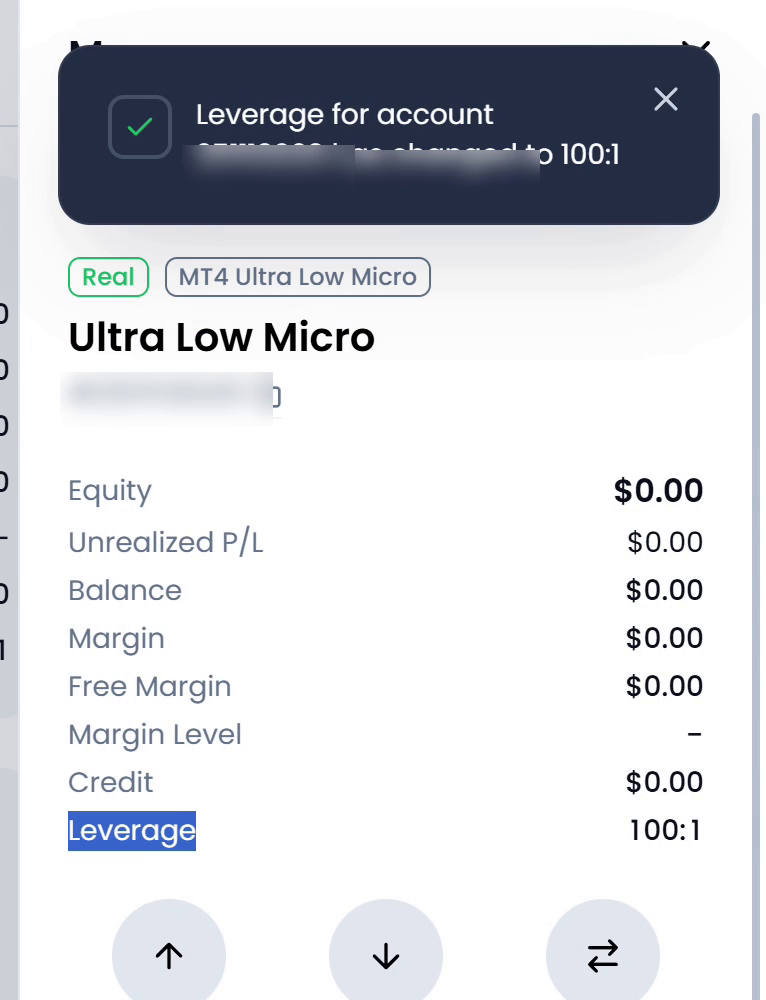
Figure 4. An Ultra Low Micro account labelled Real shows a confirmation and leverage of 100:1. The displayed margin is zero. Check your terminal figures for the account you actually changed.
If the setting or margin figures differ from what you expected, ask XM whether the change has taken effect and how it affects any open positions.
If Change Leverage is missing, a proposed ratio is unavailable or account and terminal figures appear inconsistent, work through these checks:
- Confirm that both views refer to the same trading account, account type and Real or Demo status.
- Record the platform and exact symbol, then inspect that symbol's specifications. Do not substitute another instrument's margin rules.
- Recheck the applicable terms, including the contracting company, client classification and documented account conditions.
- Record the displayed leverage, equity, used margin, free margin and the date of the discrepancy. When comparing a calculator estimate, also match its currency, instrument, account type, leverage and volume inputs.
- Ask XM which limit applies, whether a change is available and how existing positions would be treated. Describe the mismatch using the account type, platform, symbol and discrepancy date.
The cause of a missing option or inconsistent figure remains unconfirmed. A displayed leverage value, calculator estimate and instrument margin requirement answer different questions. Check each against the same account and intended position before relying on them.



 XM

