To deposit into Exness, open Deposit in your Personal Area, choose an available method and select the real trading account you intend to fund. Complete the required fields, review the summary, confirm the request and follow the payment instructions. Submitting the request, completing the provider payment and receiving credit are separate stages. Afterward, check the transaction record and destination balance. Official deposit procedure.
Available methods and funding conditions depend on your account. The supplied screenshots illustrate the interface but do not establish current availability or successful payment. The manuscript reports a browser inspection on 25 October 2026 without entering an amount or submitting a deposit; that inspection was not independently verified. The examples do not establish worldwide or Thailand-specific availability. Country, legal entity, eligible account types, device, operating system and app/browser versions are unspecified.
Video reference
Before you start
Complete Exness account verification and any requested verification of payment-account ownership. Use an available payment account registered in your own full legal name, matching your Exness registration. Third-party payments are prohibited. Verification requirements, general deposit rules.
Check the number and currency of the real trading account you intend to fund. Real accounts use real funds; demo accounts use virtual funds. Real and demo accounts.
Initiate each payment inside your own Personal Area, where Exness provides the necessary instructions. Use receiving details from the current request. Do not copy them from an old screenshot or another person's payment details. General deposit rules.
Find the methods available to your account
Open Personal Area > Deposit. Availability depends on your registered region, verification status and the payment provider's current availability. Only methods displayed for the selected transaction are currently available. Bank cards, payment services, ChipPay and crypto are examples that may appear, depending on your account. Available payment methods.
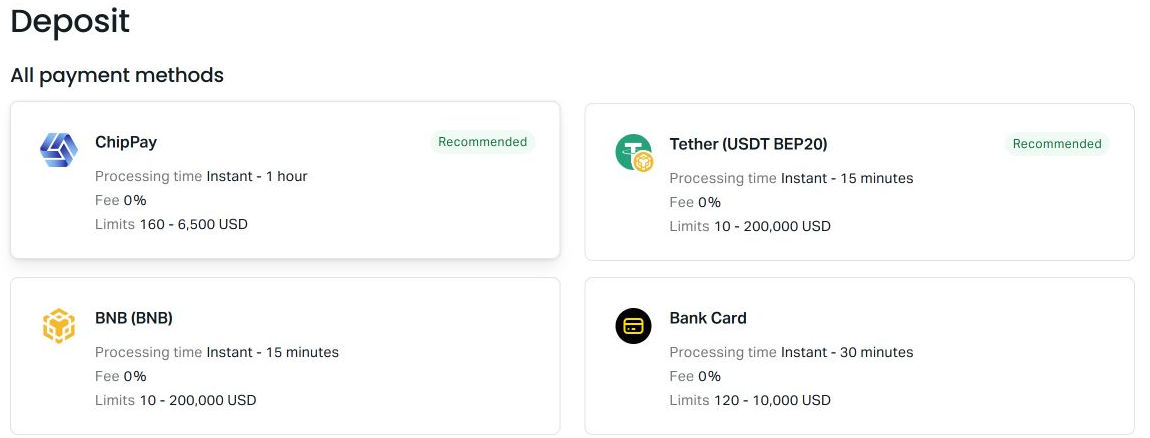
Figure 1. Historical screenshot dated 25 October 2026 in the manuscript; the date and reported inspection are not independently verified. These account-specific examples do not establish current availability, including in Thailand. Check your own Personal Area.
The manuscript describes this method-card image as an example observed on 25 October 2026. Its displayed USD limits and processing estimates apply to that reported session. Use the current details in your Personal Area when making a payment.
For each method you consider, check its currency options, minimum and maximum transaction size, provider fees, processing estimate and FAQ. Exness describes the processing range as the predicted average to maximum time. Payment method information.
You may initiate deposits 24 hours a day, seven days a week, but processing varies by method. Providers may have service interruptions, and arrival times are not guaranteed. General deposit rules.
Check four separate funding requirements
Before entering an amount, check each requirement:
| Check | What to establish |
|---|
| Per-transaction minimum and maximum | Whether your amount fits the selected method's permitted transaction range and displayed currency. |
| Cumulative limits | Whether the method imposes daily, weekly or monthly totals, and whether a limit has been reached. |
| Verification restrictions | Whether any account or payment-account verification remains outstanding. |
| First-deposit requirement | Whether the selected trading account has an initial funding requirement in addition to the method minimum. |
Some methods impose cumulative limits. The Personal Area notifies you during a transaction attempt when a limit has been reached. A per-transaction maximum does not tell you your remaining cumulative allowance. If no cumulative-limit field appears, do not assume funding is unlimited. No universal allowance or reset time is established here. Payment method requirements.
Your first deposit must satisfy both the selected account's initial requirement and the payment method's minimum. First-deposit conditions depend on account type and registered region. The method minimum also applies to later deposits, so there is no single starting amount for all readers. First-time deposits.
The method's minimum is assessed after conversion to the trading-account currency. Check the converted amount as well as the amount entered in the payment currency. Minimum transaction amounts.
Understand currencies and costs
The payment currency and trading-account currency can differ. Exness's general deposit rules require the same payment currency to be used during withdrawal, with exchange rates applying at the time of the transaction. This rule does not establish which withdrawal methods will be available to your account. Currency rules.
If the selected method supports the trading-account currency, using it can avoid conversion charges. Otherwise, review the conversion rate and expected credit before proceeding. First-deposit currency guidance.
In the supplied Help Center snapshot, Exness states that it does not charge deposit or withdrawal processing fees. Payment methods and banks may impose fees. Check the current method information and any conversion costs; a displayed 0% does not establish that the total funding cost is zero. Exness processing-fee guidance.
How to deposit through the web Personal Area
1. Select an available method and the intended destination
Open Deposit, select a method displayed for your account and complete its required fields, including the trading-account selection. Follow Exness's web deposit instructions. Labels such as Payments & wallet and To account appear in the supplied interface examples and may differ on your screen.
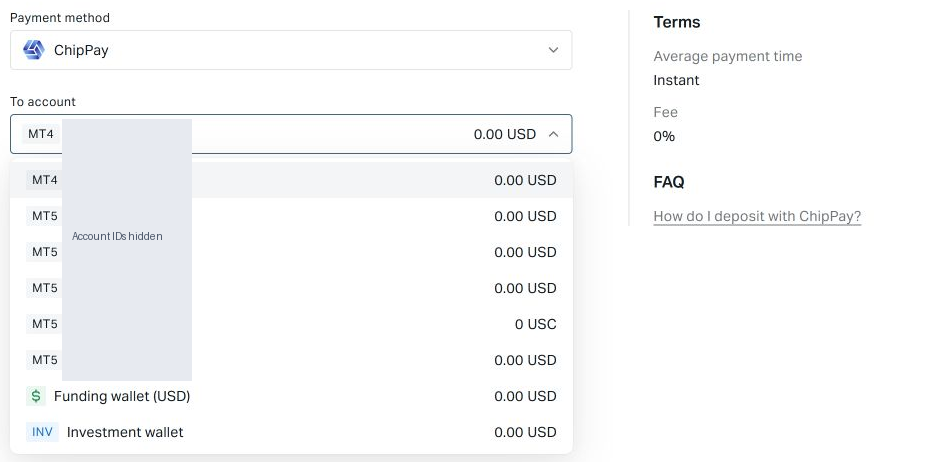
Figure 2. Supplied screenshot; capture date unverified. Match the destination and currency to your intended real trading account. Receipt in a wallet alone does not establish trading-account credit; account IDs are masked.
The supplied selector example is described as listing numbered MT4/MT5 accounts alongside separate funding and investment wallets. Account IDs are masked. Check that the destination and currency match the real trading account you intend to fund, even if an account is already selected. The reported inspection did not submit a payment.
If you select a wallet, receipt there does not by itself establish that the intended trading account has been funded. Consult the current Personal Area guidance or support if the destination is unclear. This illustration does not establish a required internal-transfer procedure.
2. Enter the amount and review the summary
Enter an amount that meets the account and method requirements, complete the remaining fields and select Continue. Before selecting Confirm, review the destination and amount, along with the payment currency, conversion, expected credit and charges wherever shown. Correct any discrepancy before proceeding. Fields and subsequent screens vary by method. Official web procedure.
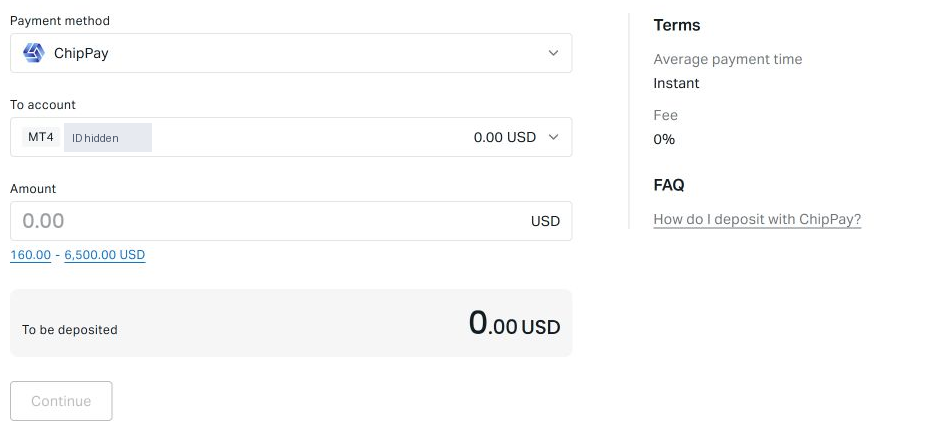
Figure 3. Historical screenshot reportedly captured on 25 October 2026, with no amount entered; these details are not independently verified. The displayed range is specific to the reported session and method, not a current or universal limit.
The supplied blank ChipPay form is reported to show Amount in USD, a transaction range, To be deposited and a disabled Continue button. The manuscript dates it to 25 October 2026 and reports that no amount was entered. Its account ID is masked. Do not treat the displayed range as a current or universal limit.
3. Complete the provider's payment instructions
After confirming the summary, follow the instructions generated for that request. Complete the payment on the provider's page when directed. Use the current instructions for any authentication and payment-reference requirements. Confirming the request alone does not demonstrate that the external payment has been completed. First-deposit procedure.
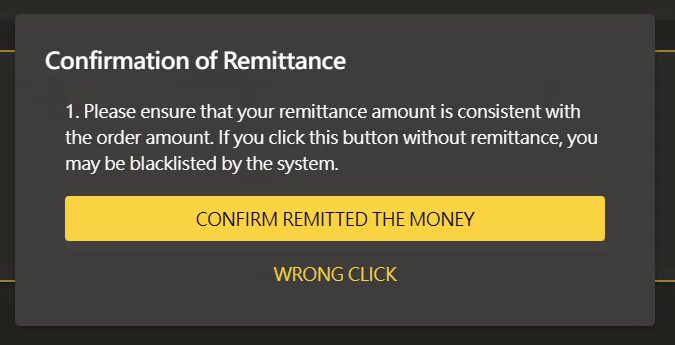
Figure 4. Supplied demonstration; capture date unverified. Declare remittance complete only after actually sending the matching payment under your current instructions. This example does not prove a real transfer occurred.
The undated supplied ChipPay demonstration uses the labels Remittance Done and CONFIRM REMITTED THE MONEY. These labels are specific to the example. If your current instructions ask you to declare that remittance is complete, do so only after sending the matching payment. The demonstration does not prove that a real transfer occurred.
4. Check the transaction and destination balance
Open Transaction history, filter to deposits and select the relevant transaction. Inspect its invoice ID and detailed timeline, then check the intended trading-account balance. Finding a deposit transaction.
Exness defines the transaction statuses as follows:
- Done means the transaction was completed.
- Processing means the transaction is not yet complete.
- Rejected means the transaction was canceled; the reason may vary.
These definitions come from the official transaction-history guidance.
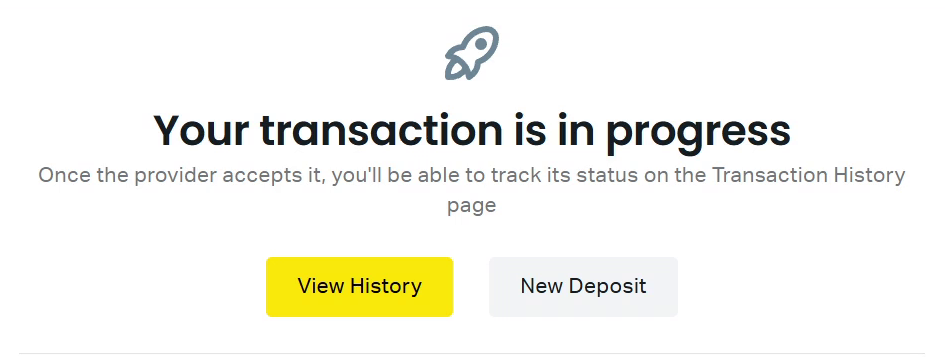
Figure 5. Supplied demonstration; capture date unverified. The message shows a pending request, not proof of trading-account credit. Do not automatically equate it with an official status label; check your transaction record and destination balance.
The supplied walkthrough displays Your transaction is in progress. It shows a pending request and does not establish trading-account credit. Do not automatically equate that wording with an official status label. Inspect your own transaction record.
If a crypto method appears in your Personal Area
Use this section only if a crypto method is displayed for your account. Initiate the payment inside your Personal Area and obtain the current receiving instructions there, following Exness's general payment rule.
Follow the asset, network and receiving instructions in your current request. If those instructions are unclear, seek account-specific support before proceeding.
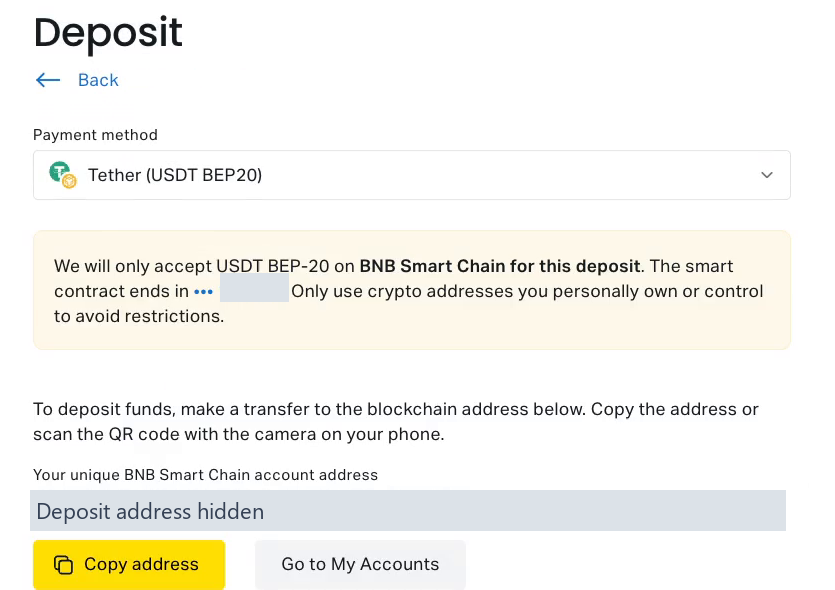
Figure 6. Supplied demonstration; capture date unverified. USDT BEP20 on BNB Smart Chain is this example’s instruction, not confirmation of current availability. Receiving details are masked and the QR code omitted. Use only the asset, network and receiving details in your own current Personal Area request; no completed transfer is demonstrated.
The supplied Crypto wallet illustration specifies USDT BEP20 on BNB Smart Chain. This example does not establish that the asset or network is currently available to you. The receiving address and contract reference are masked, and the QR code is omitted. Use the receiving details in your own current Personal Area request.
The illustration also does not establish current crypto eligibility, a completed transfer, a recovery policy or a route from a wallet to a trading account. If the displayed destination is a wallet, check that destination and the intended trading-account balance separately. Obtain account-specific guidance before assuming another step is required.
How to deposit in the Exness Trade app
- Open Accounts and confirm the account you intend to fund.
- Tap Deposit.
- Select the payment type and an available method.
- Enter the amount and tap Continue.
- Review the summary, including the intended account and currency, then tap Confirm.
- Complete the instructions on the payment method's site.
These steps follow the official Exness Trade deposit guidance. The supplied screenshots illustrate a browser workflow. Operating system, app version and regional interface differences are unspecified.
For deposit history, open the account card's Gear icon, choose Funds, then Transactions or History. App transaction-history instructions.
Troubleshoot missing options or missing credit
A payment method is missing
Recheck verification prompts and the methods currently displayed for the transaction. Provider maintenance can cause temporary unavailability. You can use another displayed method if its conditions suit you, or wait for the preferred method to return. Do not use an outside payment route to bypass unavailability. Method availability, payment initiation rules.
The intended trading account is unavailable
Possible causes include an archived or disabled account, incomplete verification or account-specific restrictions. Where applicable, restore an archived account from My Accounts, request reactivation of a disabled account through a support ticket, or complete the requested verification. These are possible causes, not a diagnosis of your account. Unavailable trading-account guidance.
A deposit is pending, rejected or missing from the balance
Compare the elapsed time with the selected method's current average-to-maximum processing estimate. The range does not guarantee a settlement deadline. Open the deposit in Transaction history, inspect its status and timeline, and check the intended destination balance. Use Get support when you need assistance or when credit has not appeared after the displayed maximum estimate. Missing-deposit guidance, app support instructions.
Keep the invoice ID, payment evidence, amount, currency and payment time available for the support request. If you have already been charged, inspect the existing request before attempting another payment.
The cited official guidance is supported by supplied Help Center snapshots retrieved on 2 November 2026. The reported interface inspection and supplied demonstrations were not independently verified. No successful deposit or crediting speed was demonstrated. Unavailable pages and other unsupplied linked material do not establish additional payment conditions.




 Exness