


 Exness



On this page
- Applies to
- Deposit availability, processing windows and support routes depend on the payment method and individual account. The manuscript dates the supplied screenshots to 25 October 2026; their capture date and contents have not been independently verified. They do not establish current worldwide availability, actual arrival times or a guaranteed recovery deadline. Country, contracting entity, account type, verification level, screenshot time zone and interface version are unspecified. Thailand availability is not established. Device, operating system and Exness Trade app version are unspecified; actual interface behavior has not been established.
- Before you start
- Gather the payment receipt and bank/provider reference if available, and access the authenticated Personal Area when possible. Mark missing details as unknown. This practical tracing checklist is not a universal list of mandatory support fields or a reason to make another payment.
- What you will learn
- An organized tracing or escalation request. Settlement, credit, reversal, refund and final resolution of the illustrated payment remain unknown.
If your bank or payment provider shows a debit but your Exness balance has not increased, find the matching Exness deposit and check its status and destination. Compare the elapsed time with the processing window for your payment method. A reduced bank balance alone does not establish that Exness received the money.
Pause further payments while tracing the original deposit. Another deposit is not an established way to unlock it. These checks can help you prepare a tracing or escalation request, but they cannot establish whether the illustrated payment eventually settled, was credited, reversed or refunded.
Deposit availability, processing windows and support routes depend on the payment method and individual account. The supplied manuscript dates its screenshots to 25 October 2026; their capture date and contents have not been independently verified. The country, contracting entity, account type, verification level, capture time zone and interface version are unspecified. The examples do not establish availability in Thailand or worldwide. The figure descriptions below are the manuscript's accounts of screenshots and a recording that were not independently inspected. Device, operating system and Exness Trade app version are also unspecified, and actual interface behavior has not been established.
Before you begin
Gather your payment receipt and bank/provider reference, if available, and access your authenticated Exness Personal Area when possible. Mark missing information as unknown. These preparations can help with tracing; they are not universal mandatory support fields.
Exness's payment guidance requires account verification, payment accounts belonging to the account holder and payments initiated through the Personal Area. These rules do not establish whether the example payment met those conditions or provide a reason to make another payment. See Payment method information and General deposit rules.
1. Check the bank or payment-provider record
Open the detailed payment record. A balance notification may not show the payment's status. Ask your bank or provider whether the entry is pending, posted, reversed or rejected, using its terminology.
Keep the receipt and reference, along with the amount, currency, date and time. Include the time zone if known. If the status is unclear, ask the bank or provider what its record confirms and whether it can trace the payment.
Match this record against Exness's transaction history. Neither a receipt nor a reduced available balance proves that Exness received the payment. The supplied evidence establishes no universal authorization, reversal or refund period.
2. Find the matching deposit in Transaction history
Log in to the Personal Area, open Transaction history, filter to deposits and open the matching transaction. Exness documents this route in its missing-deposit guide.
Use the date, account and status filters available in your interface. The controls described in the manuscript are historical examples; their exact labels and placement may differ from your current screen.
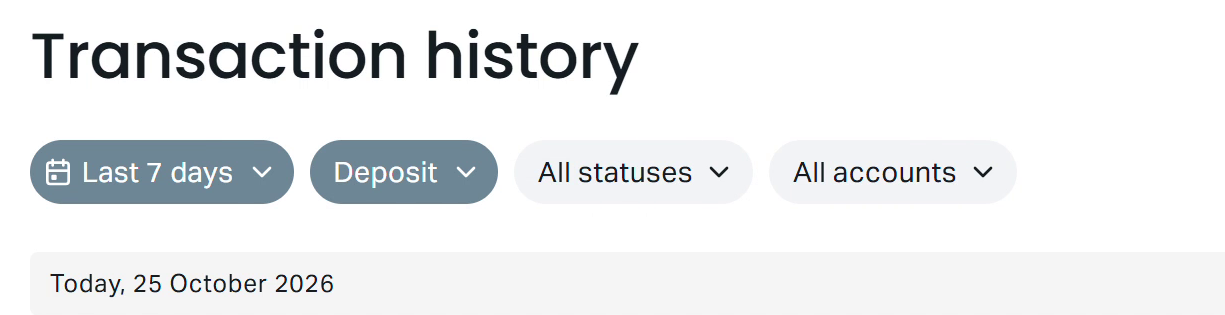
Figure 1. The manuscript dates this historical view to 25 October 2026; its capture date and contents are unverified. If your deposit is missing, broaden the date range or adjust the available account filters. Current controls may differ.
Figure 1. The manuscript describes Deposit selected in Transaction history at 00:05 in the supplied recording. Broaden the date range or account filter if your payment is missing from the current view.
Compare the amount, currency, payment method, creation time and intended destination with your payment record. Opening a history item displays its invoice ID and detailed transaction timeline, according to PA: Payments & wallets. Keep the Exness invoice ID and bank/provider reference separately so support can match both records.
Check that you have opened the deposit itself. A completed reward, withdrawal or transfer does not establish that this deposit completed. If no matching row appears, broaden the available date and account filters and confirm you are viewing the correct account before requesting support.
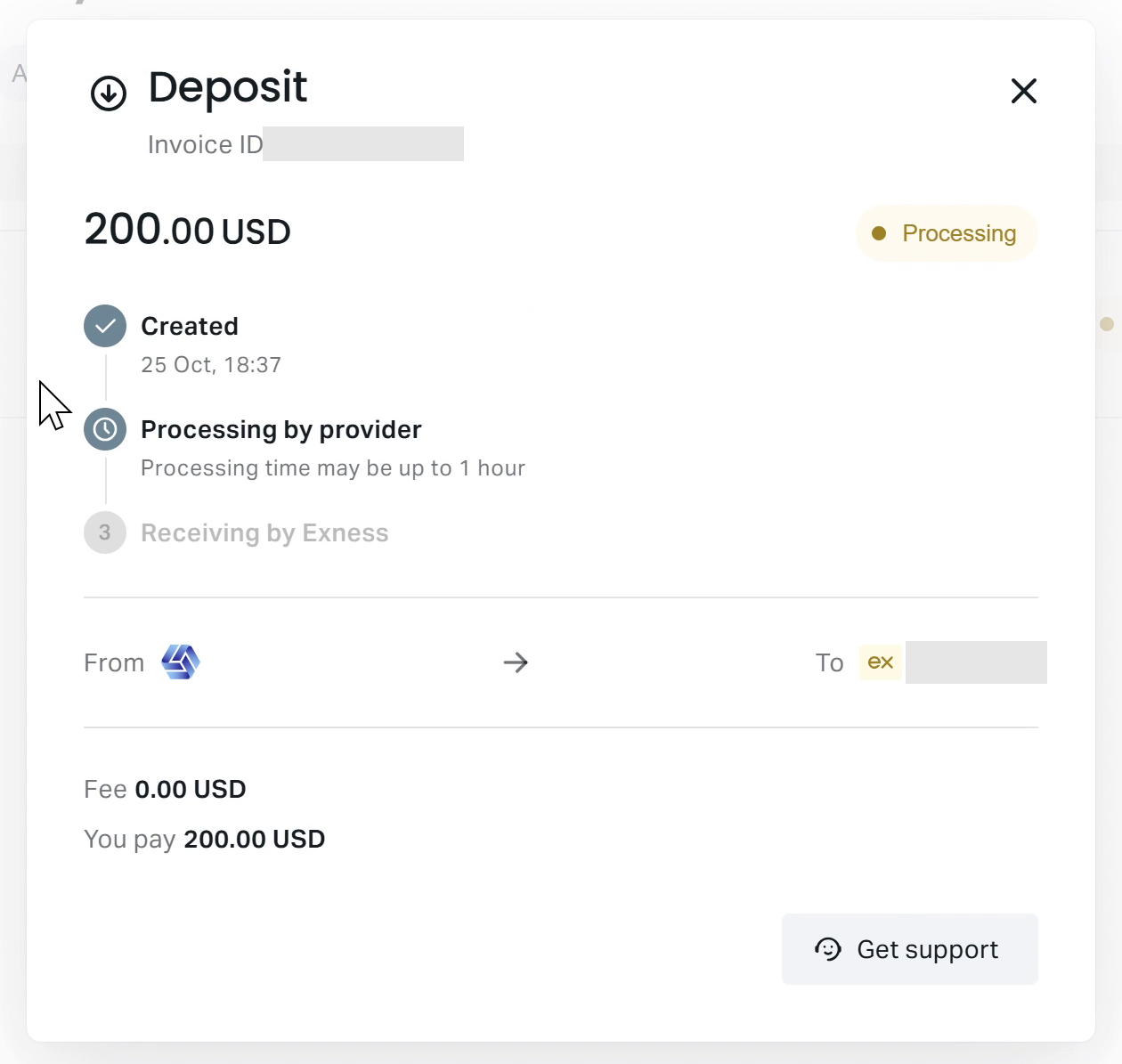
Figure 2. The manuscript describes a deposit at Processing by provider, with Receiving by Exness inactive. It dates this historical screenshot to 25 October 2026; capture date and contents are unverified. Later settlement or credit remains unknown.
Figure 2. The manuscript describes a 200.00 USD deposit showing Processing by provider at 00:08, with Receiving by Exness inactive and invoice and account identifiers masked.
The manuscript describes this deposit as incomplete at the provider stage. That description does not establish bank settlement, Exness receipt or later credit. Check your own transaction's details and timeline to identify its current stage.
3. Compare elapsed time with the applicable maximum
Check the current payment-method information in your Personal Area and read the transaction-specific instructions. Exness describes the displayed processing range as average to maximum. The faster end is not a guaranteed completion time. See the missing-deposit guide and Payment method information.
Use the maximum that applies to your method and account, including any stated business-day conditions. Availability depends on registered region, verification and supported methods, and methods can be temporarily unavailable. Check your own Personal Area to confirm availability; a method shown in the example may not be available to you. See PA: Payments & wallets.
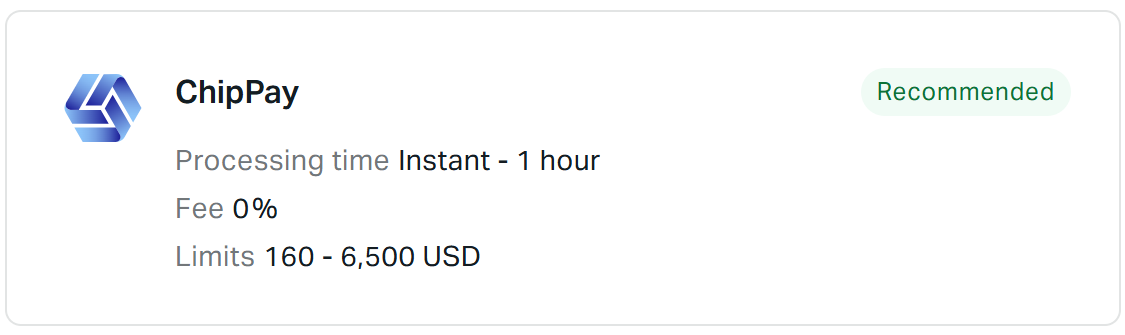
Figure 3. The manuscript dates this historical ChipPay example to 25 October 2026 and transcribes “Instant to 1 hour.” Capture date and contents are unverified. This is not a universal deadline; check your Personal Area for timing applicable to your method and account.
Figure 3. The manuscript describes a ChipPay card, dated 25 October 2026, as listing Instant to 1 hour. This range is an unverified transcription of that example screen and does not establish a deadline for every method or account.
Historical processing ranges reported in the manuscript
The manuscript's screen transcription, attributed to 25 October 2026, lists 15 deposit-method cards, excluding the internal-transfer card. The supplied official snapshots do not independently corroborate these values or method availability. The ranges below remain unverified and do not establish current or historical Exness processing commitments. Check your own Personal Area for the information that applies to your payment.
| Payment method | Supplied displayed processing range |
|---|---|
| ChipPay | Instant to 1 hour |
| Bitcoin (BTC) | Instant to 1 hour |
| CNPay (by ChipPay) | Instant to 1 hour |
| Bank Card | Instant to 30 minutes |
| BinancePay | Instant to 30 minutes |
| Neteller | Instant to 30 minutes |
| Skrill | Instant to 30 minutes |
| Tether (USDT BEP20) | Instant to 15 minutes |
| BNB (BNB) | Instant to 15 minutes |
| Ethereum (ETH) | Instant to 15 minutes |
| TRON (TRX) | Instant to 15 minutes |
| Tether (USDT ERC20) | Instant to 15 minutes |
| Tether (USDT TRC20) | Instant to 15 minutes |
| USD Coin (USDC BEP20) | Instant to 15 minutes |
| USD Coin (USDC ERC20) | Instant to 15 minutes |
Exness allows deposits to be initiated 24 hours a day, seven days a week, but processing remains method-specific and times can change. Round-the-clock initiation does not guarantee arrival within 24 hours. See General deposit rules.
4. Act on the displayed status
Exness defines Processing as not yet complete, Done as completed and Rejected as canceled, with reasons varying. These labels describe the Exness transaction. They do not establish bank settlement, hold-release or refund timing. See official transaction-status definitions.
| Displayed status or finding | What to do next |
|---|---|
| Processing | Retain the receipt, note the active stage and follow the transaction instructions. Seek tracing when the applicable maximum has passed or further assistance is needed. |
| Done | Check the selected destination account or eligible wallet, then compare the currency and conversion details. Investigate any unexplained balance mismatch. |
| Rejected | Read any reason shown. If the bank or provider still shows a charge, ask whether it is pending or posted and request tracing. Do not infer a refund date from this status. |
| No matching transaction | Recheck available filters, dates and account. If the transaction is still absent, provide the receipt and provider reference through authenticated official support. |
If the deposit is Done but the balance looks wrong
Start with the destination. The deposit workflow includes trading-account selection and a confirmation summary. Compare the account you are viewing with the account selected for that payment. See How to deposit into a trading account.
An investment wallet is available only where applicable to the account and region. Do not assume its balance is shared with every trading account or other destination. See PA: Payments & wallets.
Next, compare currencies. Deposit currency can differ from trading-account currency, and exchange rates apply at the transaction time. Check the actual conversion details. The numerical amounts may differ; without the applicable exchange rate, you cannot establish the expected credit. See General deposit rules.
For an unexplained zero balance after completion, check your trading platform's History for stop-outs or unexpectedly closed orders. Compare the platform balance with the Personal Area balance, which may not yet reflect the platform's current balance. These are documented troubleshooting checks, not established causes of the illustrated pending deposit. See Why is my trading account balance zero after depositing?.
5. Contact authenticated support with traceable evidence
Open the matching deposit and select Get support when further assistance is needed, particularly after the applicable maximum processing time. Exness documents this transaction-specific route in its missing-deposit guide.
The manuscript reports that selecting Get support in its example displayed an estimated 59-minute wait and a message about raising a request afterward if the payment remained unprocessed. This describes that example only. It establishes neither a universal restriction on contacting support nor a recovery deadline.

Figure 4. The manuscript describes a waiting notice after Get support and dates this historical screenshot to 25 October 2026. Capture date and contents are unverified. It establishes neither a submitted request, a universal support restriction nor the payment’s final outcome.
Figure 4. The manuscript describes the notice after Get support at 00:16. It does not establish that a request was submitted or what eventually happened to the payment.
Alternatively, open Support hub and select Open a ticket in your authenticated Personal Area. Select the relevant issue, follow its prompts, review the summary and submit. Track responses under My tickets. Required information differs by issue type, as explained in the Support hub guide.
Prepare your evidence
The following details can help support match the payment. This is a practical checklist, not a verified list of mandatory Exness form fields:
- Payment method, amount and currency.
- Payment date and time, including the time zone if known.
- Exness invoice ID, if available, and the separate bank/provider reference.
- Intended destination account or wallet.
- Recorded bank/provider status and Exness status, including when you last checked them.
- Relevant receipt and a screenshot of the transaction timeline, if available.
Mark unavailable details as unknown. Ask support to identify the current stage, who handles the next action, any missing evidence and the follow-up period for that transaction. If a reversal or refund is being considered, ask who is handling it and what timing applies to that payment.
Send evidence through authenticated support. Keep unrelated transactions private and exclude passwords, one-time codes and card security codes. Retain the original receipt and ticket ID. Following up in the existing case can help preserve a clear record of the same issue.
Using Exness Trade
The documented app route starts at the account card's Gear icon. Open Funds, then Transactions or History, find the matching transaction and select Get support. The app guide recommends this support route for a deposit missing beyond its maximum processing time. The device, operating system, app version and actual interface behavior are unspecified here; follow the labels available in your app. See Exness Trade: Deposits.
Keep the ticket and payment-provider records until the outcome is confirmed. Settlement, credit, reversal, refund and final resolution of the illustrated payment remain unknown, and the supplied example provides no guaranteed recovery deadline.