Filter as you type, press Enter to open the first result6 results
Risk warning:CFDs and leveraged forex trading are high-risk products that can lose your entire capital very quickly, and are not suitable for every investor. Everything on this site is information only and is not investment advice, an offer or a recommendation. Check the rules that apply where you live and read the broker's full terms and risk disclosure before opening an account. Some links on this site are affiliate links that may earn us a commission; this does not affect our scores or rankings.
Exness demo account guide: setup, virtual funds and limits
Check which Exness accounts have demos, choose a compatible platform, create a demo account and adjust its virtual balance. Learn how to interpret practice results and their limits.
Based on supplied official snapshots retrieved on 11 November 2026. Country, serving entity, account eligibility, platform availability, device requirements and interface version require local confirmation; availability for Thailand is not established. Screenshot capture dates, country, entity, device and software version are unknown. The platform notice effective 1 July 2025 does not establish current November 2026 supported builds.
Before you start
For the account-creation and balance-adjustment steps, an existing eligible Exness Personal Area with access to the intended demo account type and compatible platform.
What you will learn
Understand how to select an eligible demo account, review its setup, adjust virtual funds and distinguish practice results from real-money outcomes.
An Exness demo account lets you practise with virtual funds. A real account uses real funds. Demo balances and simulated profits cannot be withdrawn as cash, and switching to a real account does not convert virtual equity into money. Exness explains the distinction in its real and demo account guide.
The official snapshots were retrieved on 11 November 2026. Account and platform availability depend on your country and serving entity; availability for Thailand is not established. Confirm device requirements and the current interface version locally. The screenshots have unknown capture dates, country, entity, device and software version, so treat them as historical illustrations.
Video reference
Which account fits your practice task?
Exness lists demo versions of Standard, Pro, Raw Spread and Zero. Standard Cent is available only as a real account. The practice tasks below are learning suggestions, not account rankings or recommendations. See the official demo-availability rule.
Account type
Demo in the official range
Possible practice task
Standard
Yes
Learn the order ticket, position-size controls and margin display.
Pro
Yes
Inspect the available execution settings and applicable instrument terms.
Raw Spread
Yes
Record the applicable spread and any commission specified for the instrument.
Zero
Yes
Examine instrument costs without assuming the name means zero total cost.
Standard Cent
No
Its real-money account does not have a virtual-money demo.
Confirm that Demo is available for your chosen type in your own Personal Area. An account name in a general menu does not establish demo eligibility.
The cited sources do not establish current Raw Spread and Zero commission schedules. Check the spread and any specified commission for the account and instrument before interpreting simulated costs.
How virtual funds work
Exness says a real Standard MT5 account and a demo Standard MT5 account are automatically created after registration. Its account explanation does not establish a default virtual balance or universal local onboarding eligibility.
Change an existing demo balance
Log in to your Personal Area.
Open My Accounts, then select Demo.
Find the intended demo account and select Set Balance.
Enter the desired replacement amount in that account's currency.
Select Set Balance to confirm.
You can set a higher or lower balance. Enter the total balance you want the account to show; this amount replaces the existing balance. The change affects virtual funds and is not a deposit or withdrawal. The cited instructions do not specify numerical balance limits. See the official Set Balance instructions.
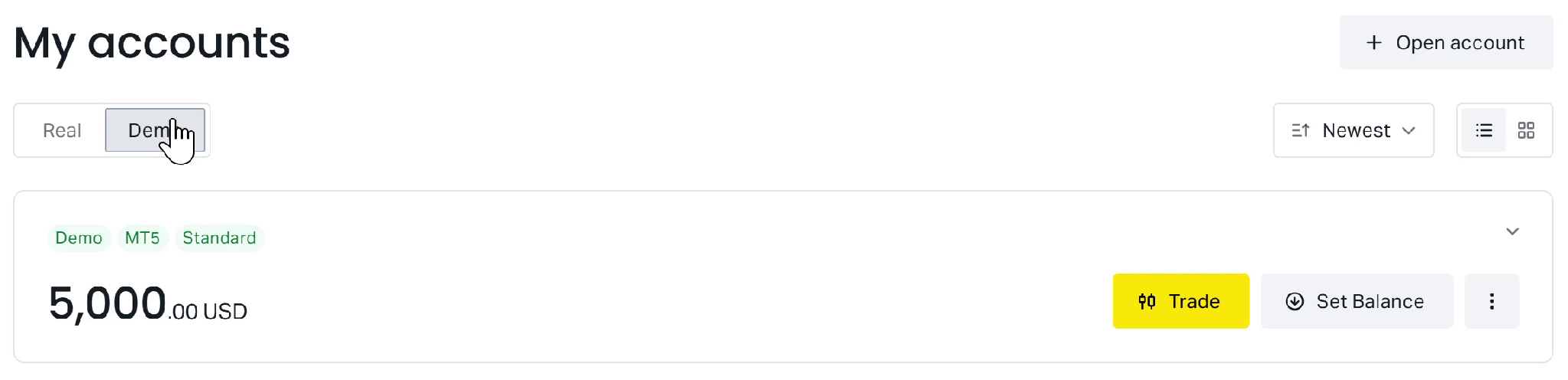
Figure 1. Historical screenshot; capture date unknown. The supplied description identifies a Standard MT5 demo card with Set Balance. It does not establish a default balance or completed adjustment. The image and reported privacy redactions were not independently verified. Country, serving entity, device and software version are unknown; current availability, including in Thailand, is unconfirmed.
The supplied description identifies this illustration as a Standard MT5 demo card at 0 seconds, showing USD 5,000 and Set Balance. It also reports privacy redactions of the account identifier and unrelated wallet information. Neither the image nor those redactions was independently inspected. The illustration establishes neither a default balance nor a completed adjustment.
Choose a virtual balance suited to the situation you want to model. Record manual balance changes separately from simulated gains and losses.
Choose a compatible platform
Account type and platform are separate choices. Match the account's platform, login and allocated server to the software you intend to use.
Platform
Compatibility described by Exness
Automation information
Exness Terminal
Browser access for Exness-based and MT5-based accounts, subject to regional restrictions
Check the particular feature and account configuration.
MetaTrader WebTerminal
MT4 and MT5 accounts; accessible through desktop or mobile browsers
Automated trading is unavailable.
Exness Trade
Android and iOS app with in-app trading for Exness-based and MT5-based accounts
Automated trading is listed as unavailable.
MetaTrader 4 desktop
MT4 accounts
Supports trading robots and scripts in the MQL4 environment.
MetaTrader 5 desktop
MT5 accounts
Supports trading robots and scripts in the MQL5 environment.
MetaTrader mobile applications
Match MT4 accounts to MT4 and MT5 accounts to MT5
MT5 mobile lists no automated trading.
These details come from the official available-platforms guide. In certain regions, MT5 accounts can only use MetaTrader 5 desktop or mobile and are unsupported on Exness Terminals. The source does not identify the affected countries or entities, so Thailand's position remains unknown.
For an Expert Advisor or script, check the program's platform, operating-system and build requirements. Desktop automation support does not establish that every program will work on every device.
The platform guide includes a support notice effective 1 July 2025. That notice does not establish which builds are supported in November 2026. Confirm current requirements before downloading software or troubleshooting compatibility.
Create a demo account and review its settings
These steps require an existing Personal Area that is eligible for the intended account and platform.
Open My Accounts and select Open Account.
Choose an eligible account type, then select Continue.
Select Demo.
Review the currency, account nickname, maximum leverage and platform. Check the execution field for Pro and the trading-password field for MT4/MT5 where applicable. If your interface has a starting-balance field, review that amount too.
Check the selected settings before choosing Create an Account.
Exness says creating a trading account carries no fee. Trading or payment costs may still apply. You cannot subsequently change the account type or allocated trading server; a different account type requires another account. See the official account-creation instructions.
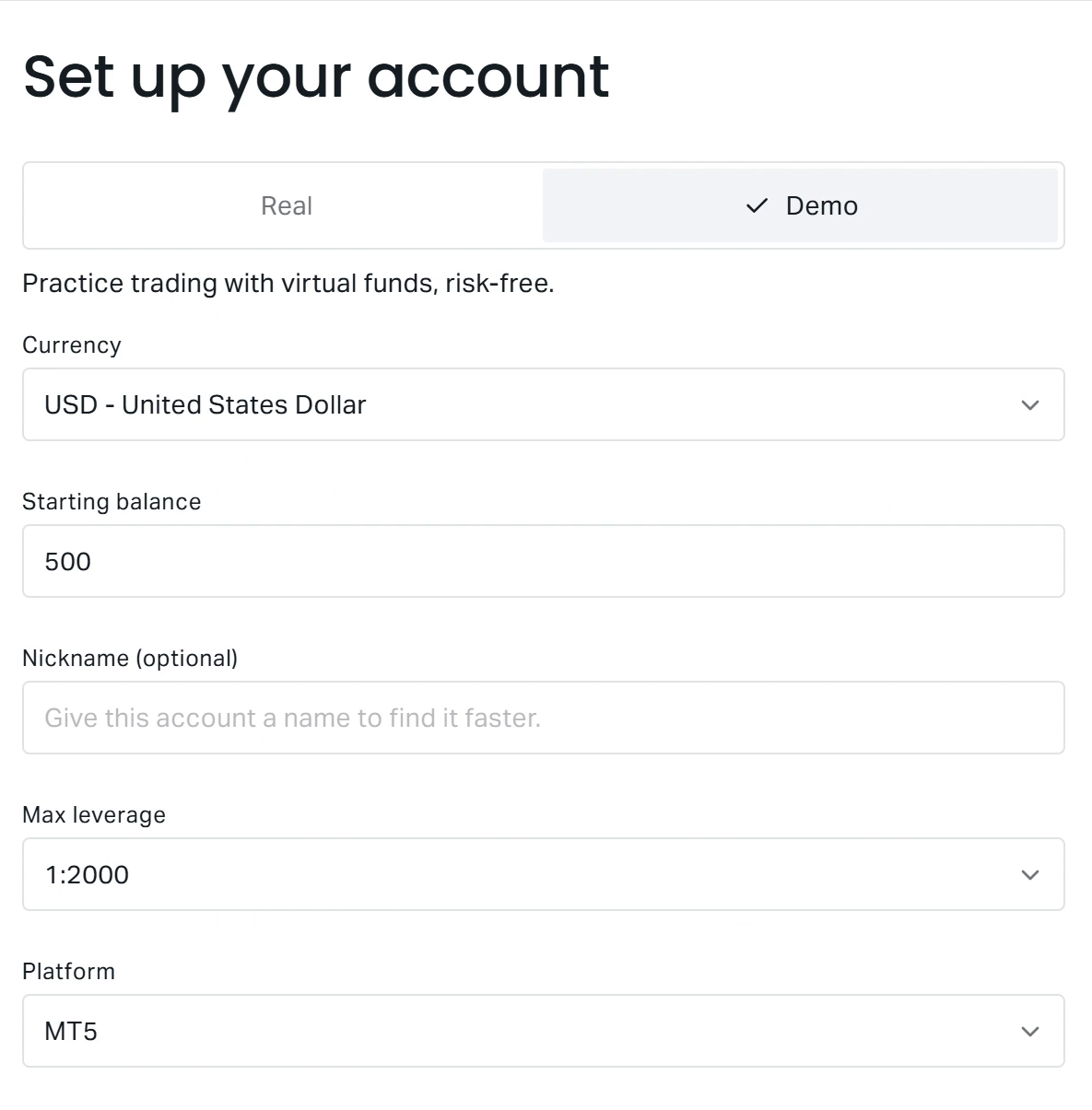
Figure 2. Historical screenshot; capture date unknown. The supplied description identifies Zero demo setup. Balance and leverage are example settings, not recommendations or universal defaults. The description says recording ends before submission; completed account creation is unconfirmed. The image was not independently verified. Country, serving entity, device and software version are unknown; current availability, including in Thailand, is unconfirmed.
The supplied description identifies this illustration as Zero setup at 21 seconds, with Demo selected and fields for currency, starting balance, leverage and the MT5 platform. USD 500 and the displayed leverage are example settings, not recommendations or universal defaults. The description says the recording ends before submission. The image was not independently inspected, and its capture date is unknown; it does not establish completed account creation or current availability.
For readers who need a new Personal Area, the original manuscript includes this Exness registration referral link. Its disclosure states that the referring partner may receive compensation and promises no bonus or rebate. The compensation arrangement and geographic registration eligibility remain unverified.
Understand the differences between demo and real accounts
Issue
Demo account
Real account
Funds
Virtual equity and simulated gains or losses
Real funds and actual trading gains or losses
Balance changes
Set Balance changes virtual funds
Deposits and withdrawals involve real transactions under applicable conditions
Withdrawal
Virtual equity is not withdrawable cash
Requires sufficient available funds, an available method and any required verification
Inactivity
Inactive MT4/MT5 demos can be irreversibly deleted
Archived real accounts can be reactivated
Performance record
Shows practice results in that environment
Shows actual results for those trades, without establishing future performance
Exness explains the distinction between virtual and real funds in its account guide. For real withdrawals, Exness requires sufficient available funds, an available withdrawal method and completion of any required account or payment-method verification. Check the method's conditions in your Personal Area. The cited guidance does not establish country-specific methods, currencies, fees or processing times. See the withdrawal prerequisites.
Inactivity can remove a practice account
Inactive MT4 and MT5 demo accounts can be deleted and cannot be reactivated after deletion. Exness defines inactivity as a lack of trading or balance operations; logging in alone does not meet the stated activity requirement. Keep important practice records independently of the account.
The cited pages do not specify a numerical demo inactivity deadline. Their three-day statement concerns possible real-account archiving, not demo expiry. Archived real accounts can be reactivated, while deleted demos cannot. Technical reasons may also cause earlier archiving or deletion. See real and demo accounts and archived trading accounts.
Account counts are separate from order limits
The official table lists up to 100 MT4 demos and 100 MT5 demos per eligible account type within one Personal Area, excluding Standard Cent. These limits do not establish universal local eligibility or how many accounts a terminal can use simultaneously. See the account-count limits.
For Standard MT5 specifically, the cited specification lists these order limits:
Demo accounts have a maximum of 1,024 open orders, including up to 1,024 pending orders.
Real accounts have unlimited open orders, with a limit of 1,000 pending orders.
Pending orders count within the demo total; they are not an additional allowance. Unlimited open orders does not remove other operational constraints. These figures should not be extended to other account types. See the Standard account specification.
Troubleshoot setup and access problems
Problem
What to check
Demo is unavailable for the selected type
Standard Cent is real-only. For another type, confirm eligibility in your own Personal Area; a general menu listing does not establish eligibility.
Set Balance is missing
Check that you have opened My Accounts, selected Demo and found the intended account card. Interface labels may differ by version.
The account cannot be used in the chosen terminal
Match the login, server and MT4/MT5 platform. Check whether regional restrictions require MT5 desktop or mobile.
An Expert Advisor or script will not run
Confirm its MQL4/MQL5 environment, operating-system and current build requirements. WebTerminal, Exness Trade and MT5 mobile do not list automated trading support.
A practice account is missing
Consider inactivity deletion for MT4/MT5 demos. A deleted demo cannot be reactivated; real-account archiving follows different rules.
Record practice results and interpret their limits
Start with an observable task. You could practise placing, modifying and closing an order. Other tasks include inspecting displayed margin or reviewing how a chosen position size changes the order details.
Record the account type, platform, account currency, starting virtual balance, instrument, position size and applicable costs. Keep manual balance adjustments separate and retain losing trades. You can also practise using stop loss and take profit, then review the order history. These are educational suggestions without proven performance benefits.
Exness describes demo market conditions as similar to real-account conditions. Similarity does not establish identical execution, liquidity, slippage or future fills. See its real and demo account explanation.
NFA's notice on hypothetical performance explains that hypothetical results do not represent actual trading and cannot fully account for liquidity, slippage or responses to financial losses. This is general educational context and does not imply NFA oversight of your Exness account.
A demo record documents practice results. It does not establish future live profitability, guarantee execution or protect against real financial losses.



 Exness